
Adding a client
Create a customer record so you can track their assets and work.
Each client (small business fleet) lives in its own tenant in TorqueOS, with your workshop linked to it. That means the client's data — their assets, fuel records, defects, prestarts — stays separate from every other client's, but you (the workshop) can see and edit everything you need to.
Two ways to add a client
- Workshop creates first, invite later. You set up the client tenant, add their assets, log work — and only invite them to log in when they're ready. This is the default flow and is what we recommend for most workshops.
- Client signs themselves up and invites you. If your customer is more tech-forward, they can self-onboard at app.torqueos.net/signup as a Fleet, then send a workshop-link request to your business. See accepting a workshop link for that path.
Add a client (workshop-led)
- From the Workshop dropdown, select Clients.
- Click Add client.
- Fill in the trading name, ABN, primary contact, email, phone, and address. The email is required because that's where the invitation will eventually be sent.
- Click Save.
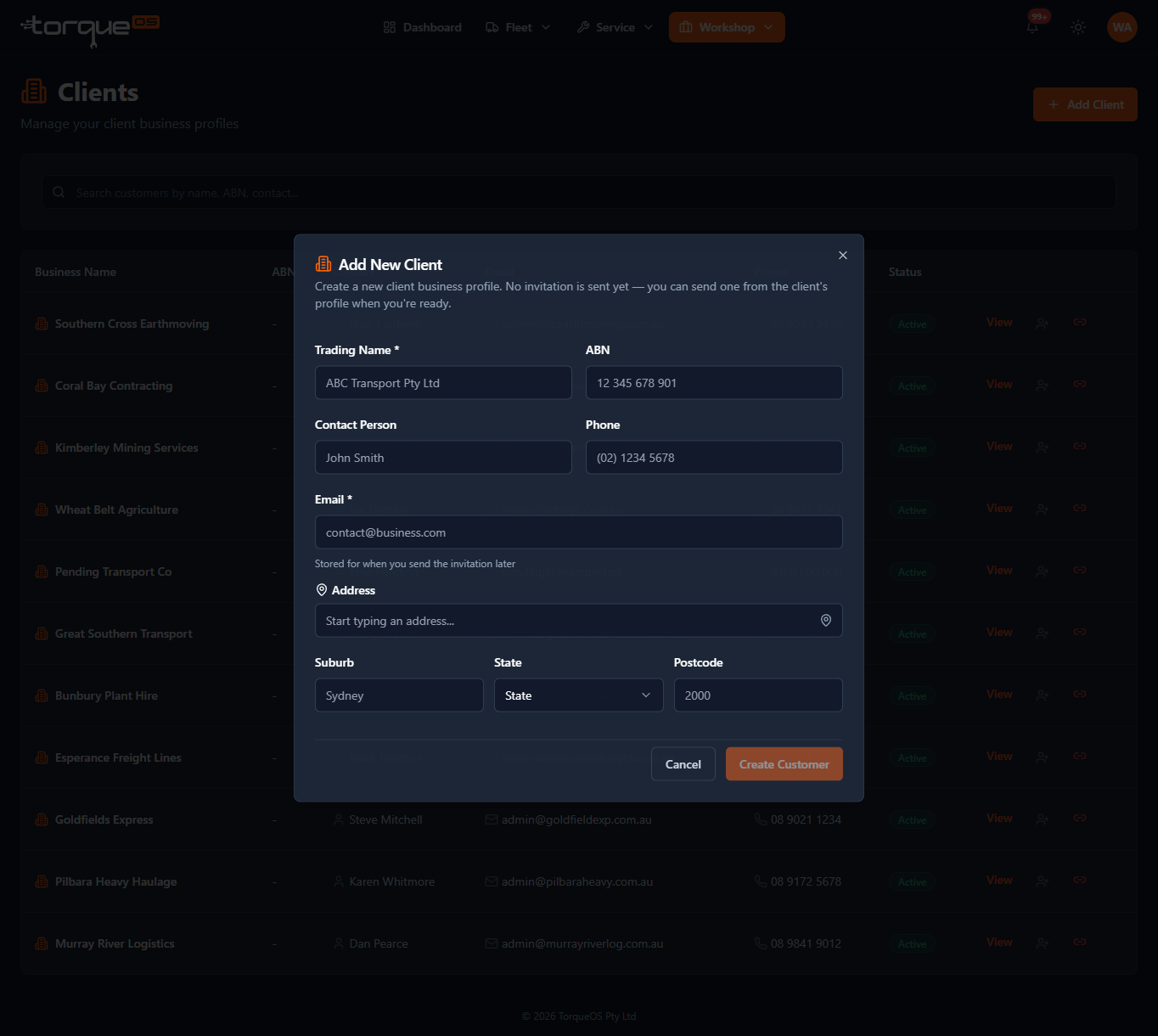
The client record is created and the workshop link is established immediately. You can now start adding assets, creating work orders, and logging defects against their fleet — the customer doesn't need to log in (or even know about TorqueOS) yet.
When you're ready, send the invitation
- From the Workshop dropdown, select Clients, then open the client's detail page.
- Click Send invitation.
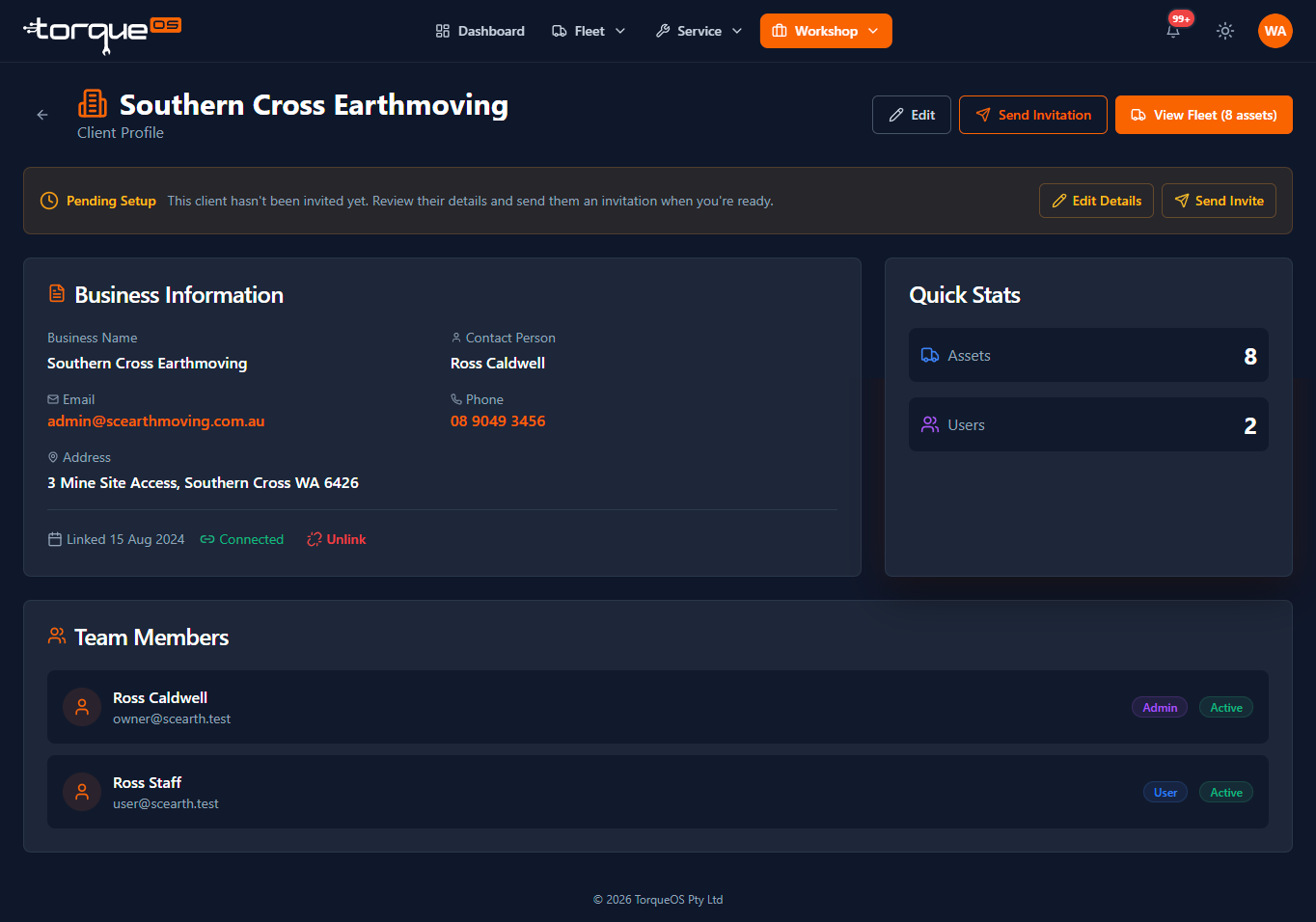
That fires an email to the address on file with a setup link. Once they click it and choose a password, they get full (if subscribed) Fleet Admin access to their own tenant — they can see the work you've logged, submit defects, run prestarts, and invite their own drivers.
What the client sees
Clients only see their own data. They cannot see other clients of yours, your internal notes, or anything you've marked as internal. Internal work orders (back-office jobs like demo trucks or your own fleet) stay hidden from clients automatically.
Still stuck? Email support@torqueos.net with your tenant name and a brief description and we'll get back to you the same business day.