
Inviting your team
Add other workshop admins or mechanics, control what they can see and edit.
Each person on your team should have their own login. Time entries, notes, photos, and audit log entries all attribute to whoever is signed in, so shared accounts make it impossible to tell who did what.
Workshop roles
- Workshop Admin — full access. Can add clients, manage assets, write and approve work orders, manage parts, manage the team.
- Mechanic — sees only the work orders assigned to them. Can update status, log time, add notes and photos, and add parts to their own jobs. Cannot create work orders or invite other team members.
Send an invitation
- From the Business dropdown, select Team.
- Click Invite team member.
- Enter their email address and check Invite as Workshop Admin or leave unchecked for Mechanic.
- Click Send invitation.
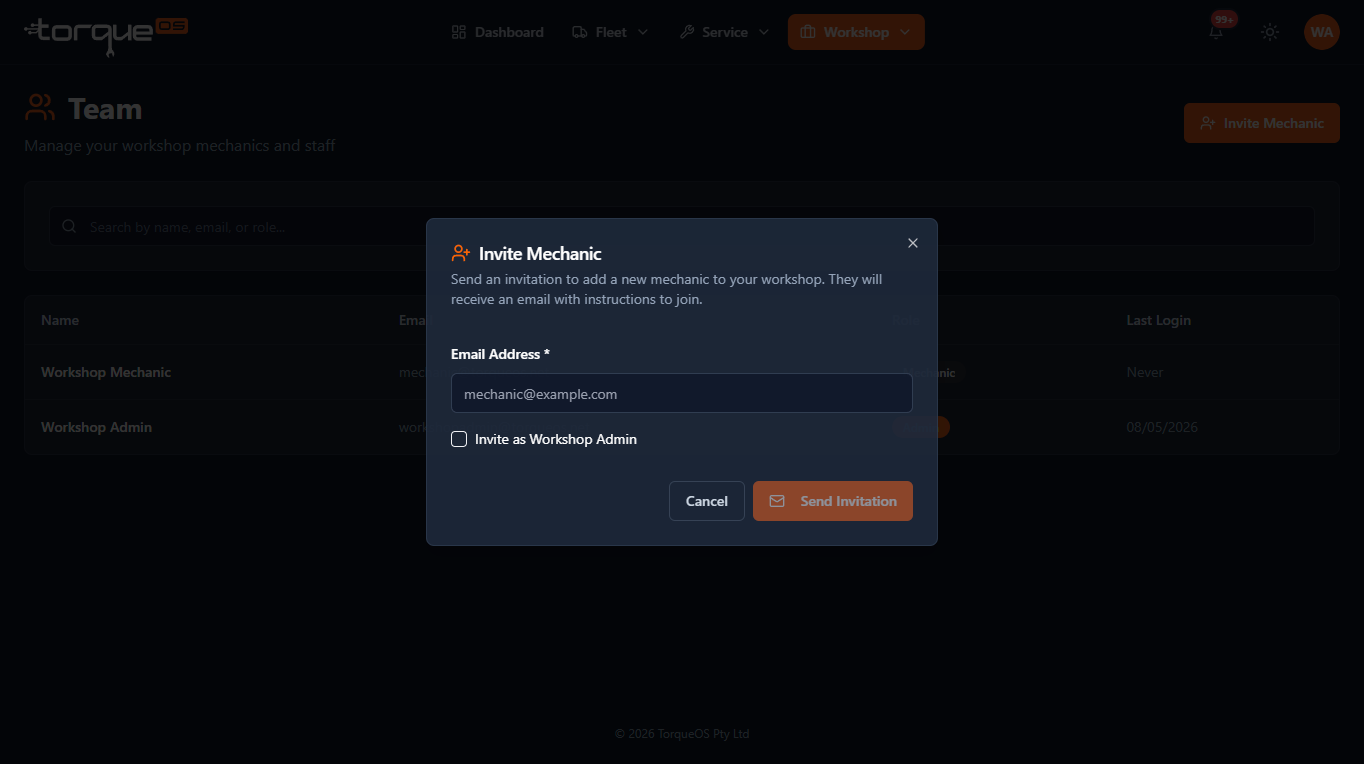
TorqueOS sends an email to that address with a one-click setup link. The invitee chooses their own password and lands directly in your workshop. Invitations expire after 7 days; you can re-send from the same Team page.
Changing roles or removing someone
- From the Business dropdown, select Team.
- Click the row of the person you want to change.
- Use Change role to promote a mechanic to admin (or vice versa), or Deactivate to revoke their access without losing the audit history of their past work.
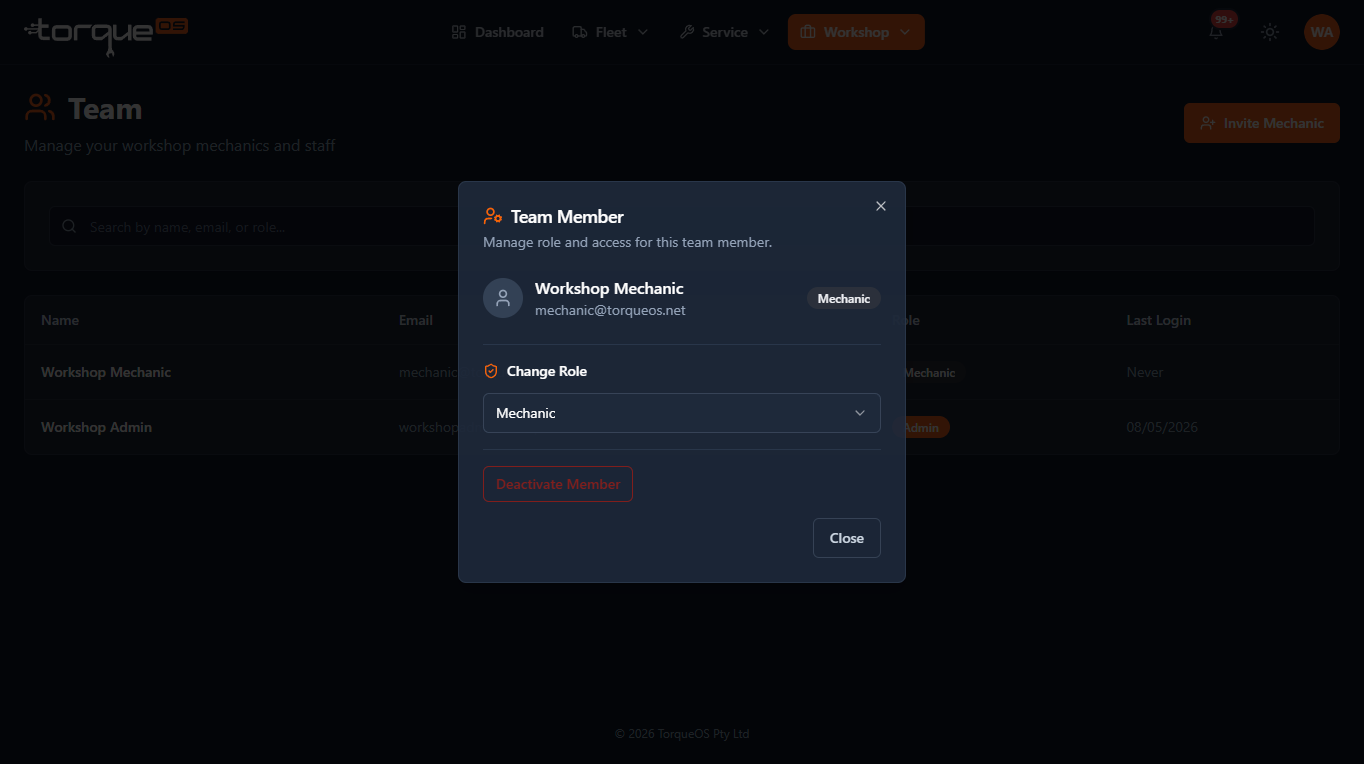
Deactivated members keep showing on historical records (work orders, time entries) so nothing in your audit history goes missing — they just can't log in any more.
Related guides
Still stuck? Email support@torqueos.net with your tenant name and a brief description and we'll get back to you the same business day.