
Creating a work order
From job request through to completion, including notes, photos, and PDFs.
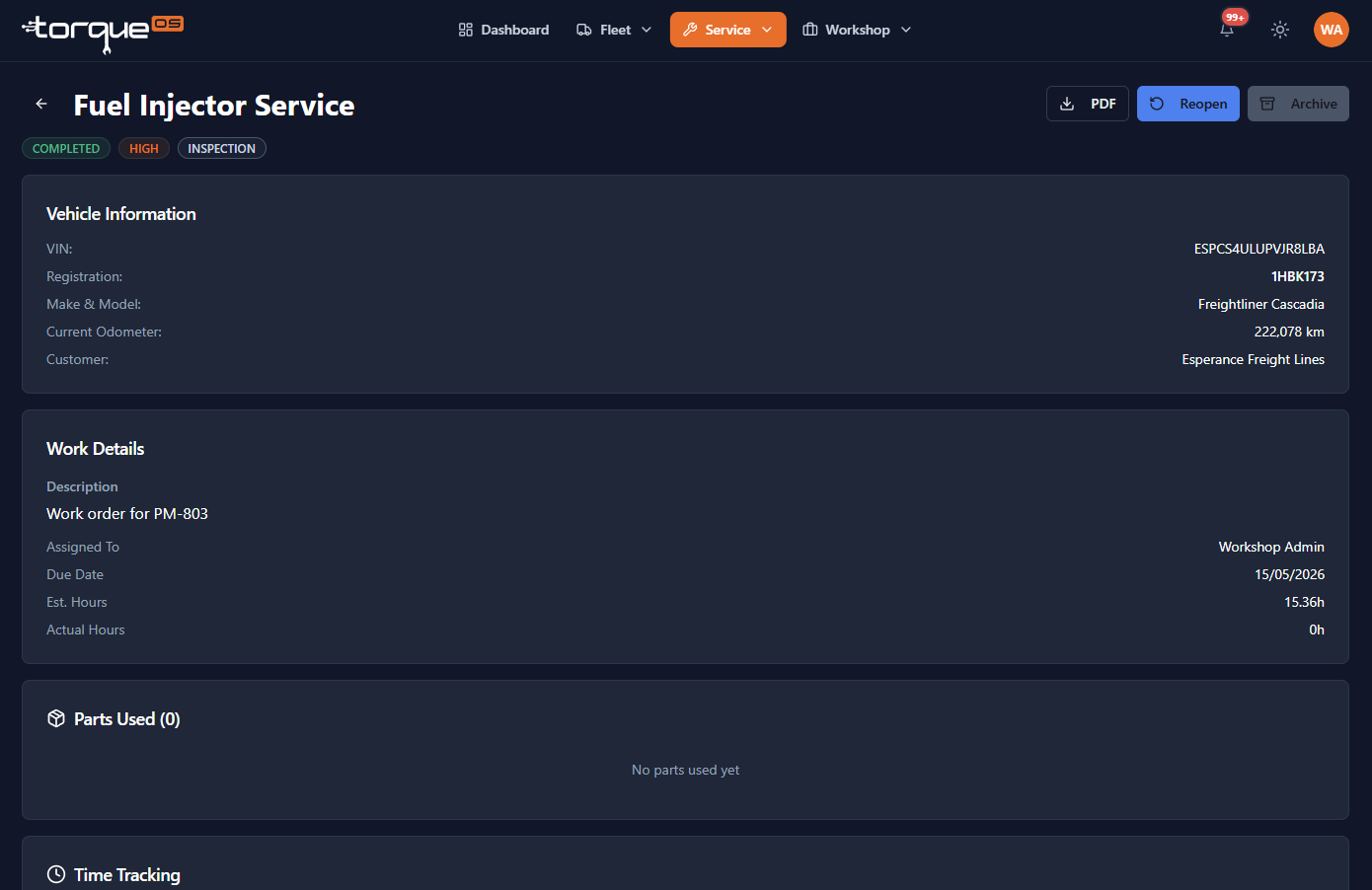
A work order in TorqueOS is the unit of billable work on a single asset. It carries the description, priority, due date, assigned mechanic, time entries, parts, notes, photos, and the PDF you ultimately deliver to the client.
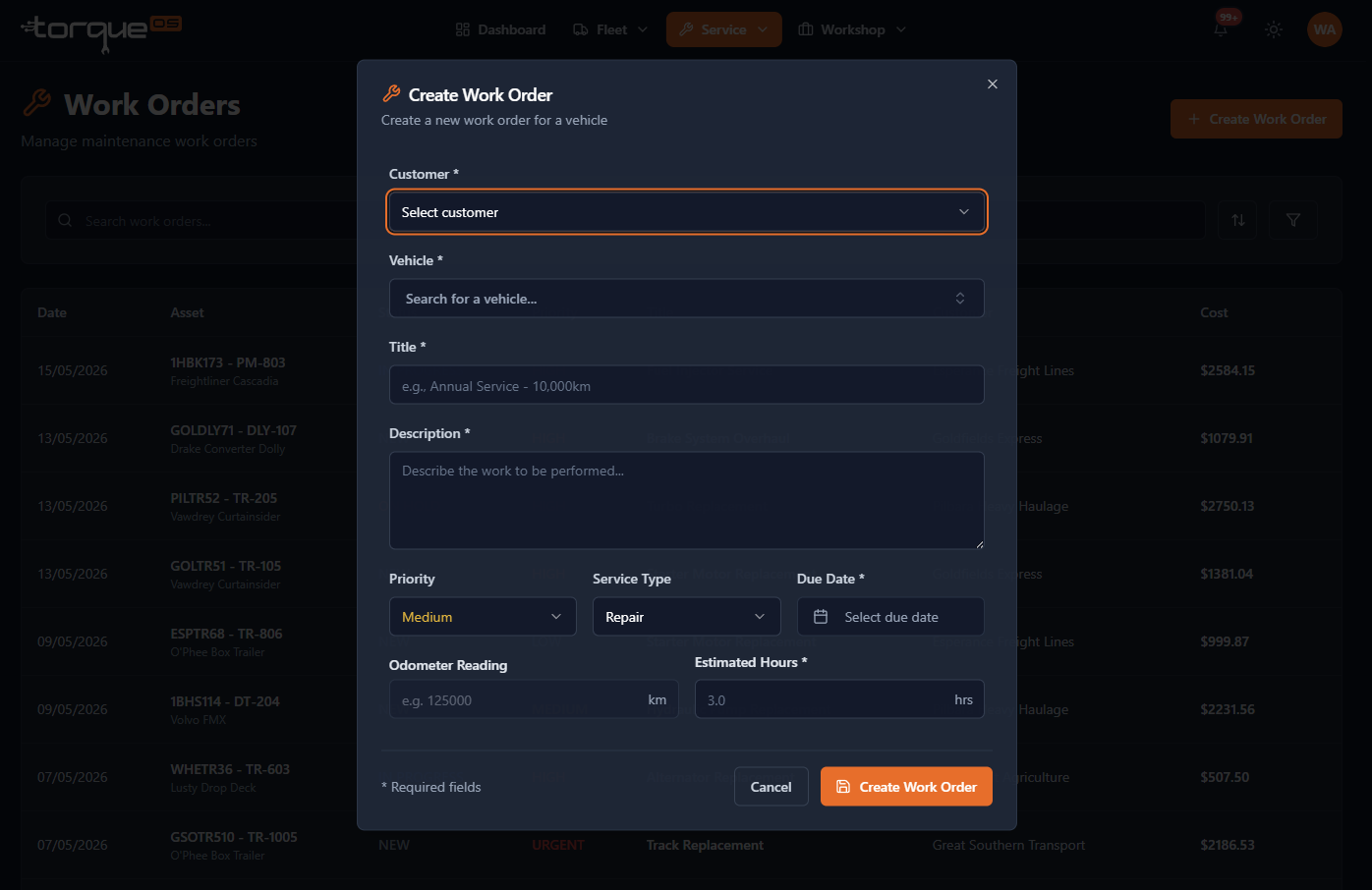
Create a new work order
- From the Service dropdown, select Work Orders and click New work order.
- Choose the client, then the asset.
- Give it a clear title — what the customer will see on the email/PDF.
- Set priority (Low / Medium / High / Urgent) and a due date if there's a hard deadline, Optionally assign a mechanic at this time.
- Click Create.
Logging time
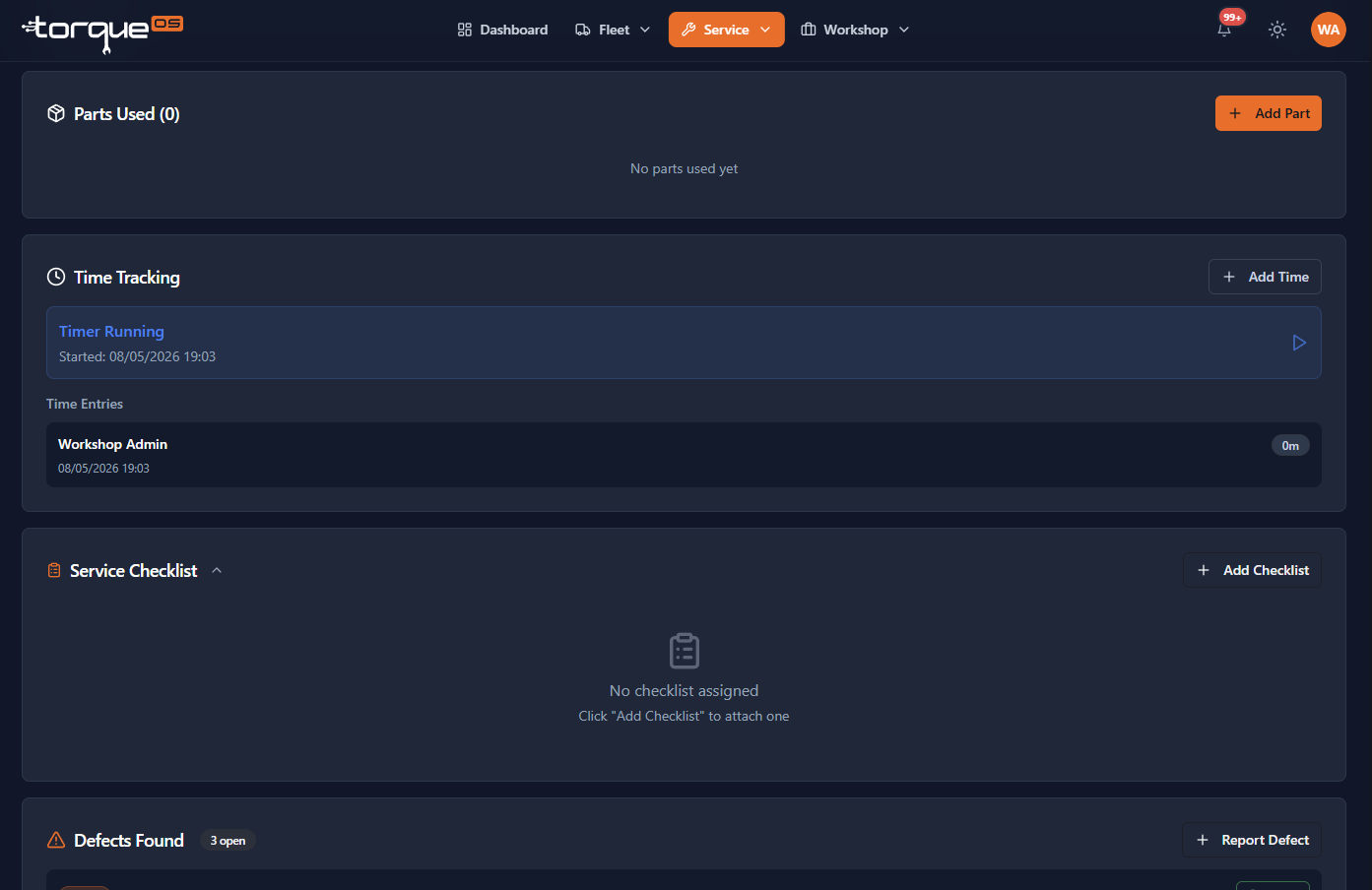
Mechanics start a timer on their own work order and stop it when they switch jobs or clock off. Workshop admins can also add manual time entries after the fact.
- Open the work order.
- Under Time entries, click Start.
- Click Stop when you switch jobs.
Multiple short blocks throughout the day are fine — they all roll up to a total at the bottom of the section, and into the labour cost.
Adding parts
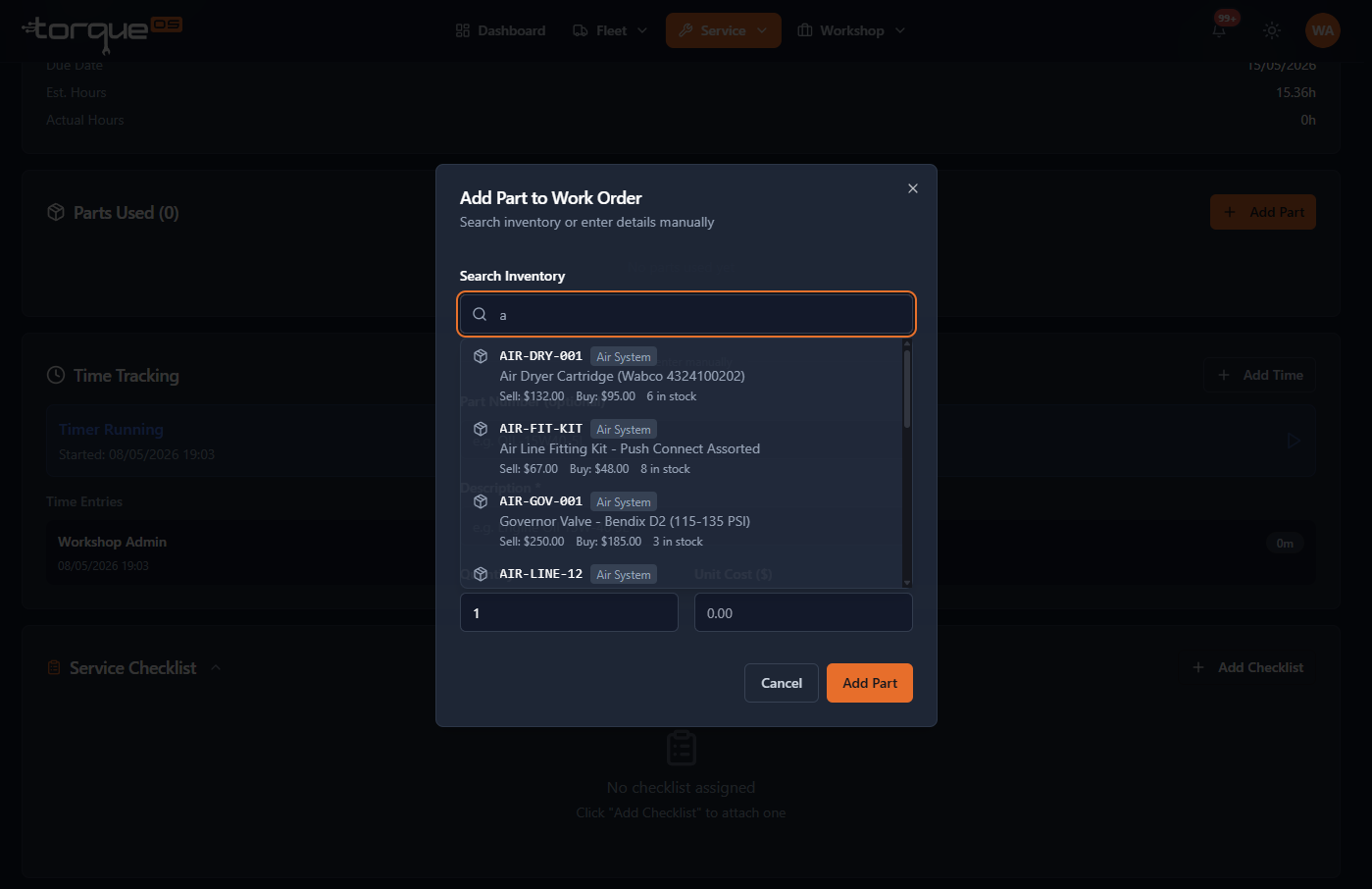
Search the parts catalog, pick the right one, set the quantity, and the system decrements stock and adds the cost to the work order automatically. For one-off items not in your catalog, use Add manual part — a part number isn't required.
Notes & photos
Notes are short timestamped observations a customer (and your team) can read. Photos attach to the work order and to defects raised during the job. Both are useful for post-job evidence and for quoting follow-up work.
Completing the job
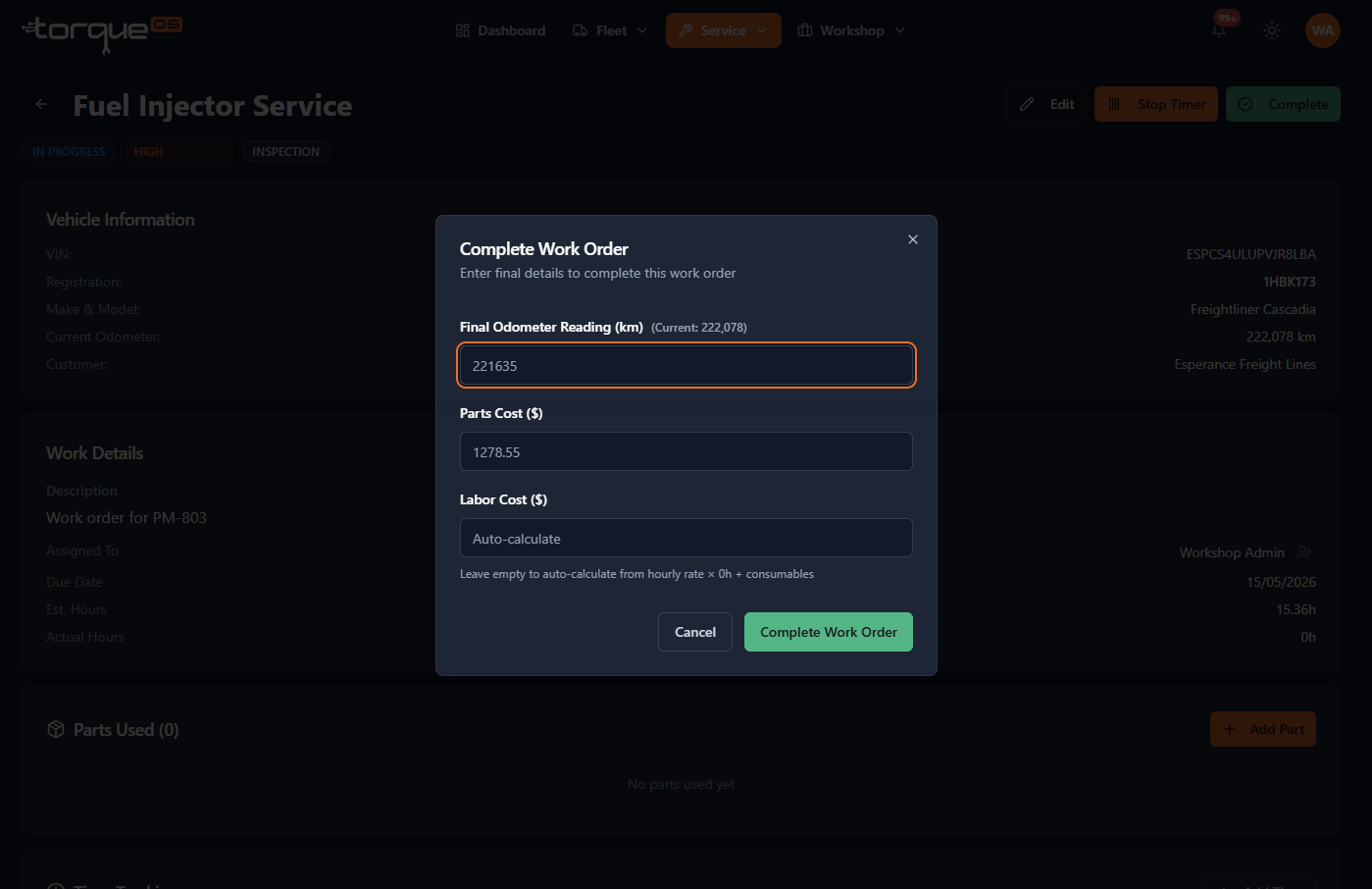
- Stop any running time entries.
- Confirm parts and labour costs look right.
- Change the status to Completed. TorqueOS captures the completion timestamp, the actual hours, and totals — and emails the customer (configurable) with a PDF attached.
Downloading the PDF
Click PDF on a completed work order. This downloads the same PDF that was emailed to the customer, with your logo, business details, itemised costs, and any notes or photos you added. You can also email this PDF to additional recipients if needed.
What about quotes?
Quotes are separate from work orders. Build a quote, send it for approval, then once approved you can convert it directly into a work order so all the line items carry across.
Related guides
Still stuck? Email support@torqueos.net with your tenant name and a brief description and we'll get back to you the same business day.