
Viewing work orders
See what your workshop is doing on your assets, with timeline and photos.
Work orders are the workshop's record of work performed on your assets. As a Fleet Admin you can see every work order on your tenant — who did what, when, what parts were used, and what it cost.
Where to find them
Open Work Orders from the navbar. The list shows everything across all your assets. Filter by status (active / completed / archived), priority, or asset.
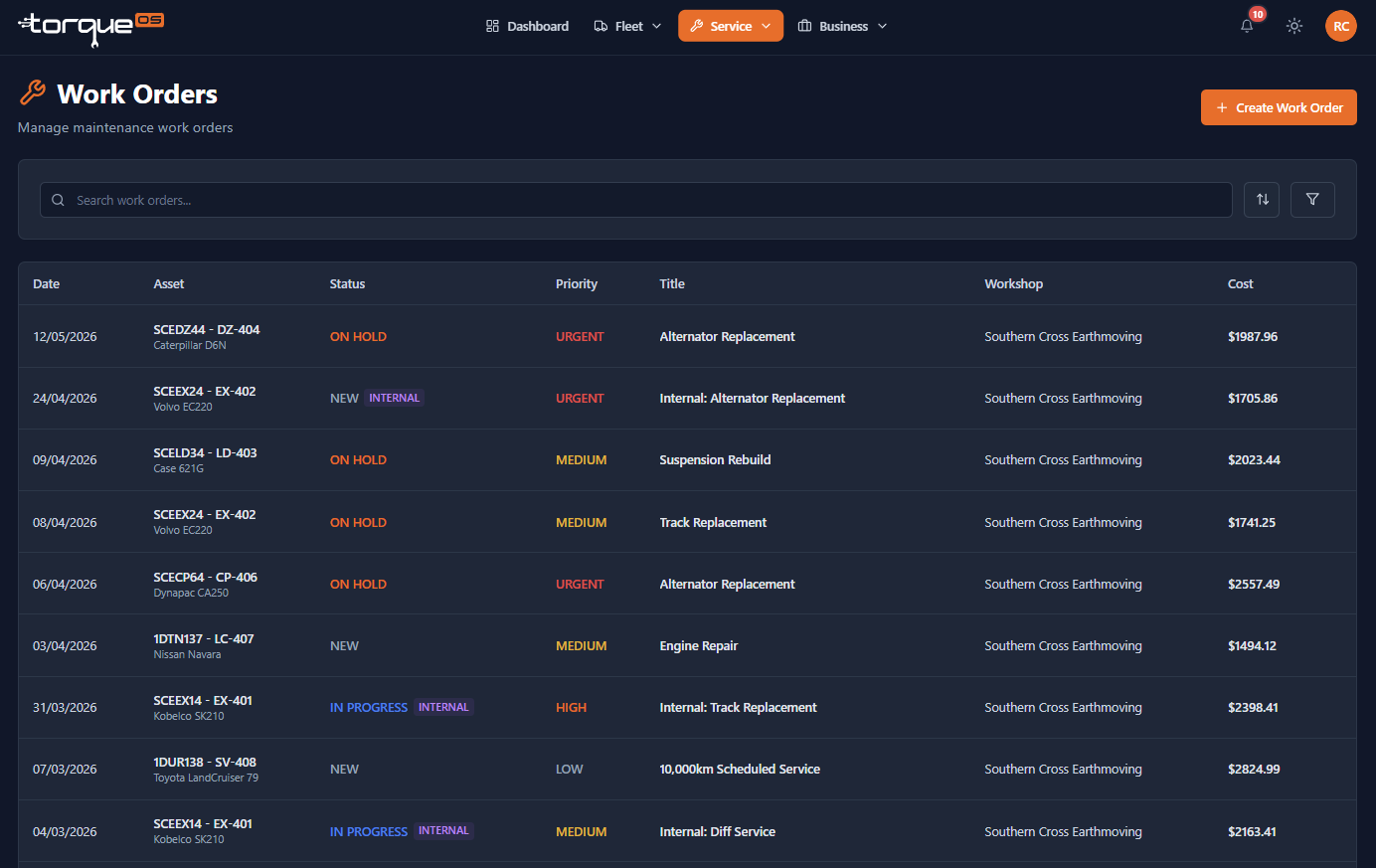
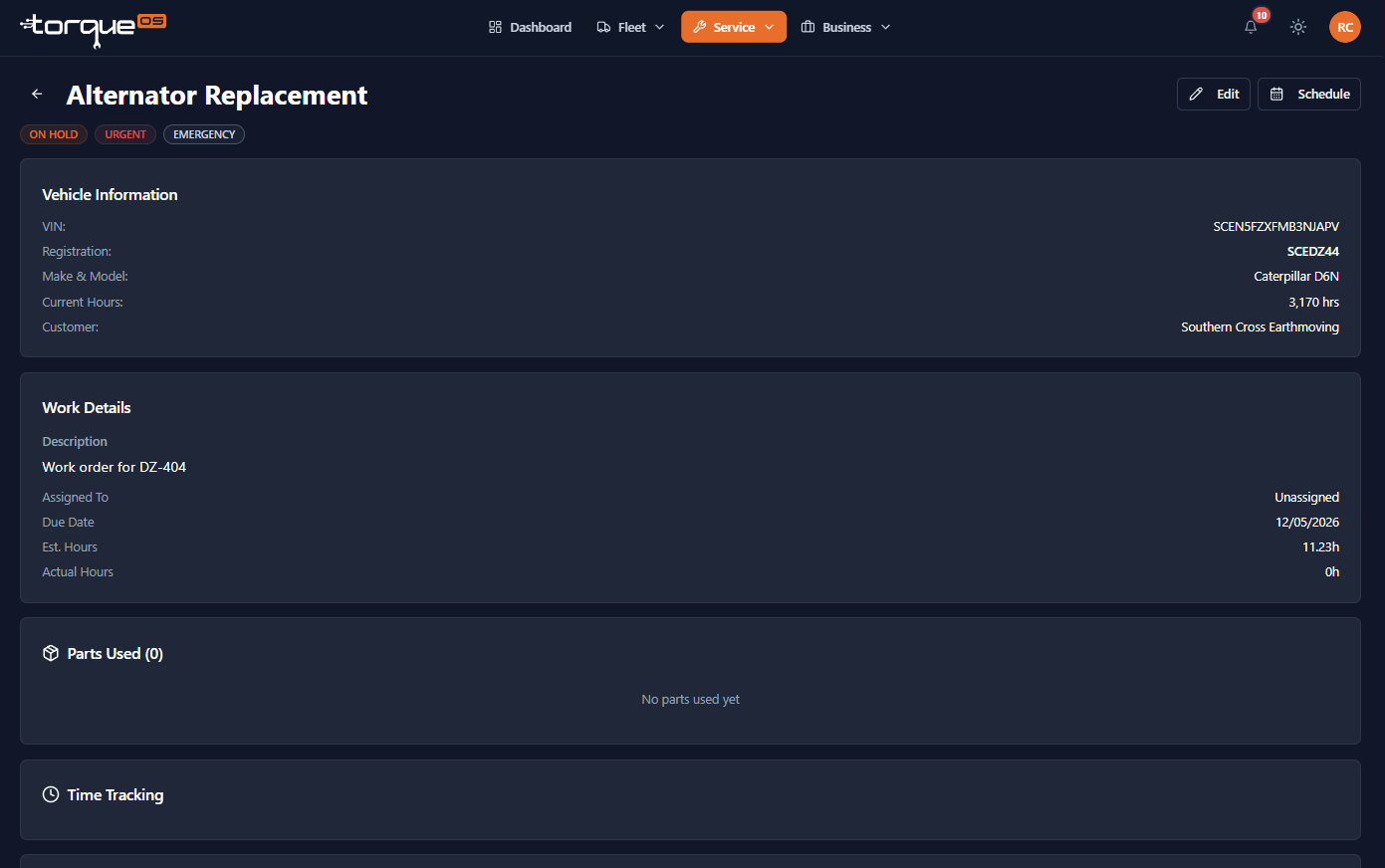
What you can see on a work order
- Title, description, priority, and status
- The mechanic assigned (workshop) or your own user (self-managed)
- Time entries — total hours and the breakdown
- Parts used — with quantities and costs (If Workshop Linked).
- Notes added by the workshop or your team
- Photos — before/after shots, defect evidence
- The completion PDF, downloadable any time
Internal vs external work orders
If a workshop manages your fleet, they may have internal work orders for back-office admin (e.g. their own demo trucks). You won't see those — they're intentionally hidden from clients.
Self-managed fleets can mark their own work orders as internal too — useful for tracking your own back-office maintenance separately from operational jobs.
Adding a note or photo
On a work order detail page, scroll to Notes and add anything the workshop should know. Notes are time-stamped and attributed to your user. Photos work the same way.
Fleet User access
Fleet Users see only work orders explicitly assigned to them. If you have drivers or operators who shouldn't see the whole job book, that's the right role for them. See Inviting fleet users.
Related guides
Still stuck? Email support@torqueos.net with your tenant name and a brief description and we'll get back to you the same business day.