
For fleets
Inviting fleet users
Add staff who can submit defects and prestarts but don't need full admin access.
Fleets have two roles:
- Fleet Admin — full access. Can manage assets, invite users, accept and cancel workshop links, see all defects and work orders, and update odometers.
- Fleet User — operational access. Can submit defects and prestarts, view only work orders assigned to them, update readings on assets they interact with. Can't invite team members or change settings.
Use Fleet User for drivers, dispatchers, or yard staff who need to log issues but shouldn't see the whole back-office picture.
Send an invitation
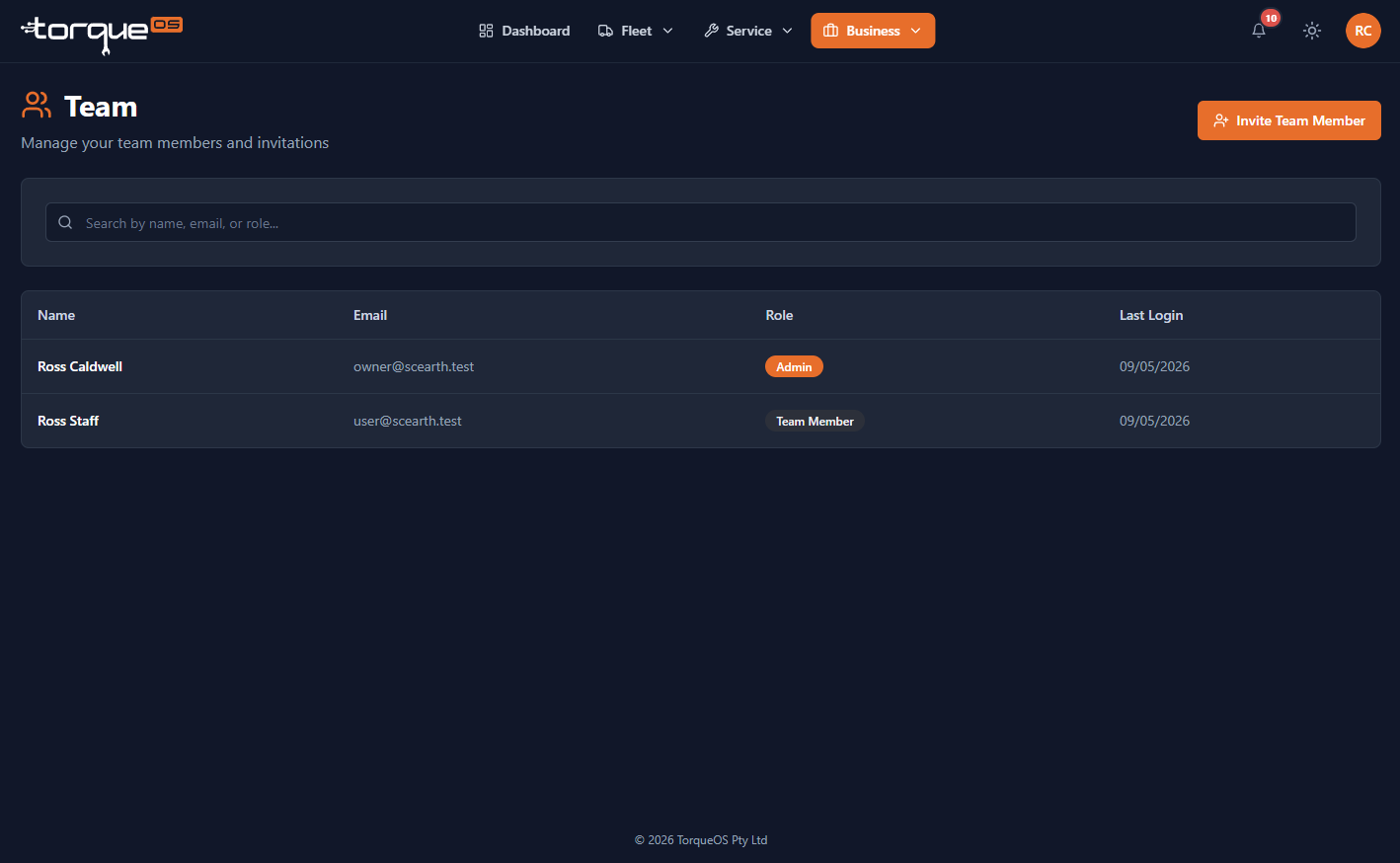
- From the navbar, open Business then Team.
- Click Invite team member.
- Enter the email address and check Business Admin or leave unchecked for Fleet User.
- Click Send invitation.
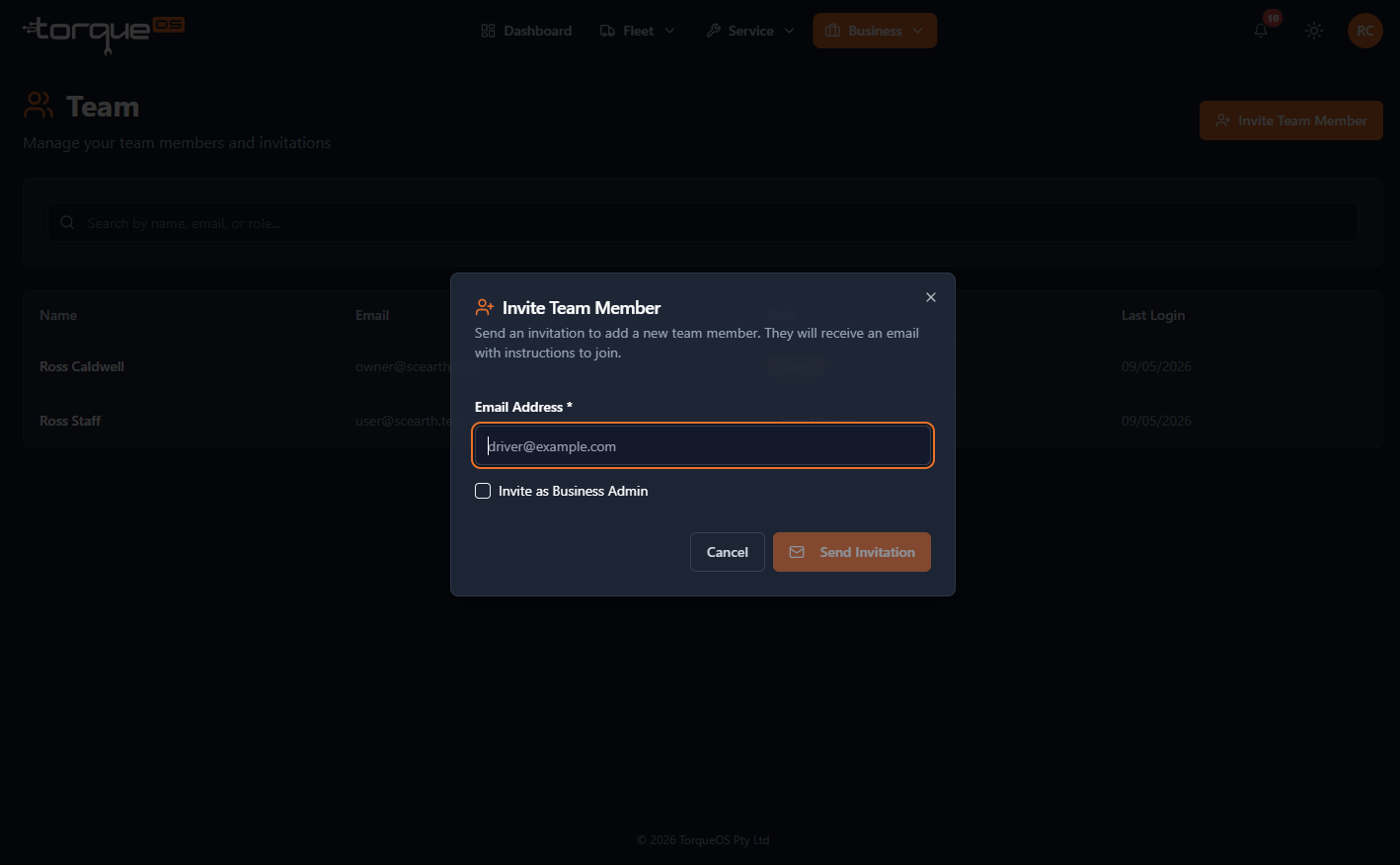
TorqueOS sends an email with a one-click setup link. They choose their own password and land directly in your fleet. Invitations expire in 7 days; you can re-send from the same Team page.
What Fleet Users can do
- Submit defects (with photos) on any asset they have access to
- Run prestart checks (mobile or desktop)
- Update odometer / engine hours when they interact with an asset
- View work orders that have been assigned to them by an admin
What Fleet Users cannot do
- See work orders not assigned to them — even on assets they otherwise interact with
- Access aggregate reports or maintenance cost data
- Invite, deactivate, or change roles of other team members
- Accept or cancel workshop links
Still stuck? Email support@torqueos.net with your tenant name and a brief description and we'll get back to you the same business day.