
Managing your assets
Add and edit vehicles, update odometers, and track service intervals.
Assets in TorqueOS are anything you operate — prime movers, trailers, dollies, light commercials, plant. Each asset has a registration, VIN, make/model/year, an asset type (which drives prestart and service templates), and either a kilometre or hour meter for service tracking.
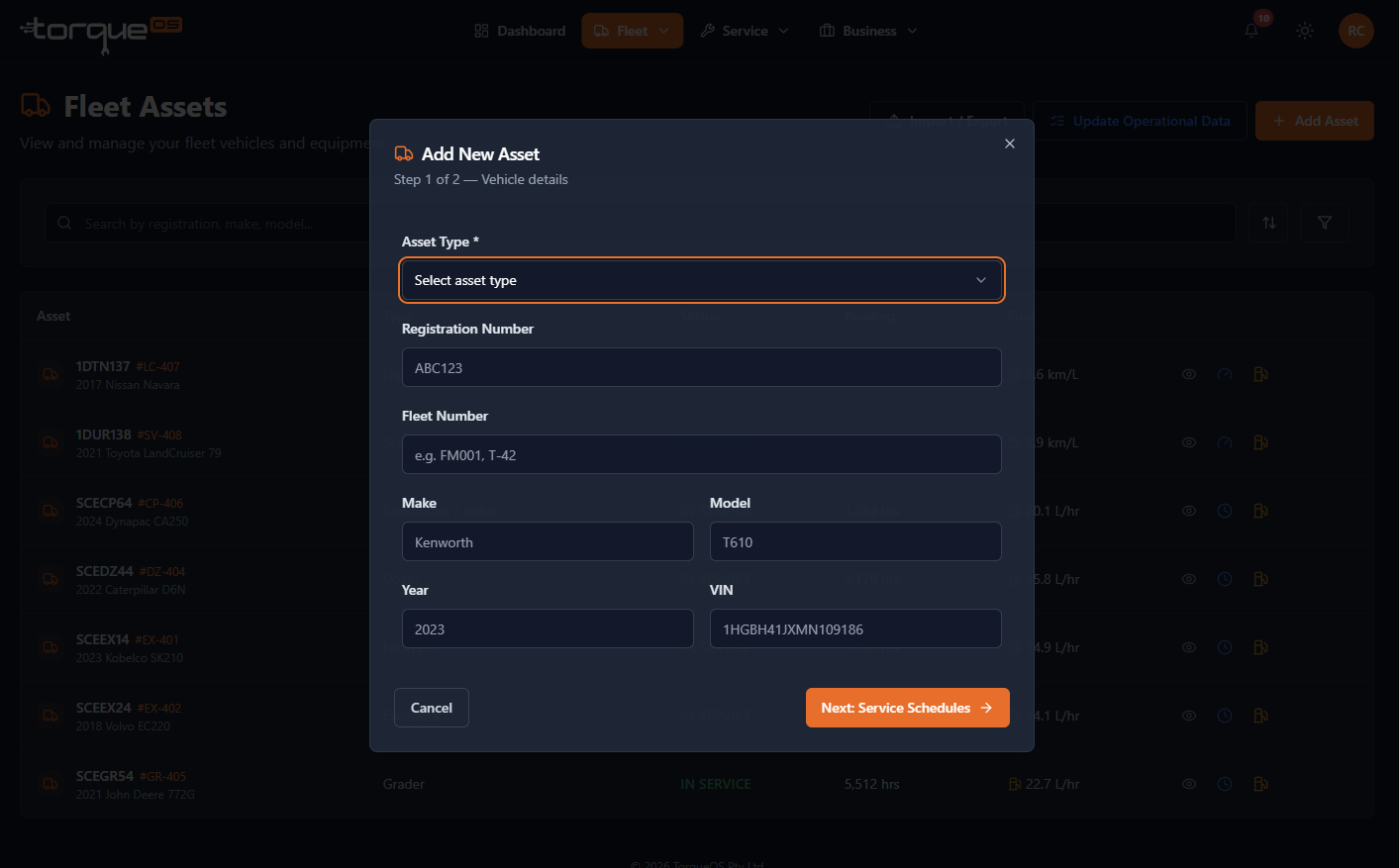
Add a single asset
- Open Assets from the navbar.
- Click Add asset.
- Pick the asset type (Prime Mover, Trailer, Excavator, etc.).
- Enter registration (required), VIN, make/model/year.
- Set the service tracking type — Kilometres for road vehicles, Engine hours for plant.
- Save.
Bulk-import via CSV
Faster for fleets > 10 assets. Open Assets › Import, download the CSV template, fill it in, and upload. The preview shows what will be created so you can confirm before committing.
Updating odometer or engine hours
- Open the asset card or detail page.
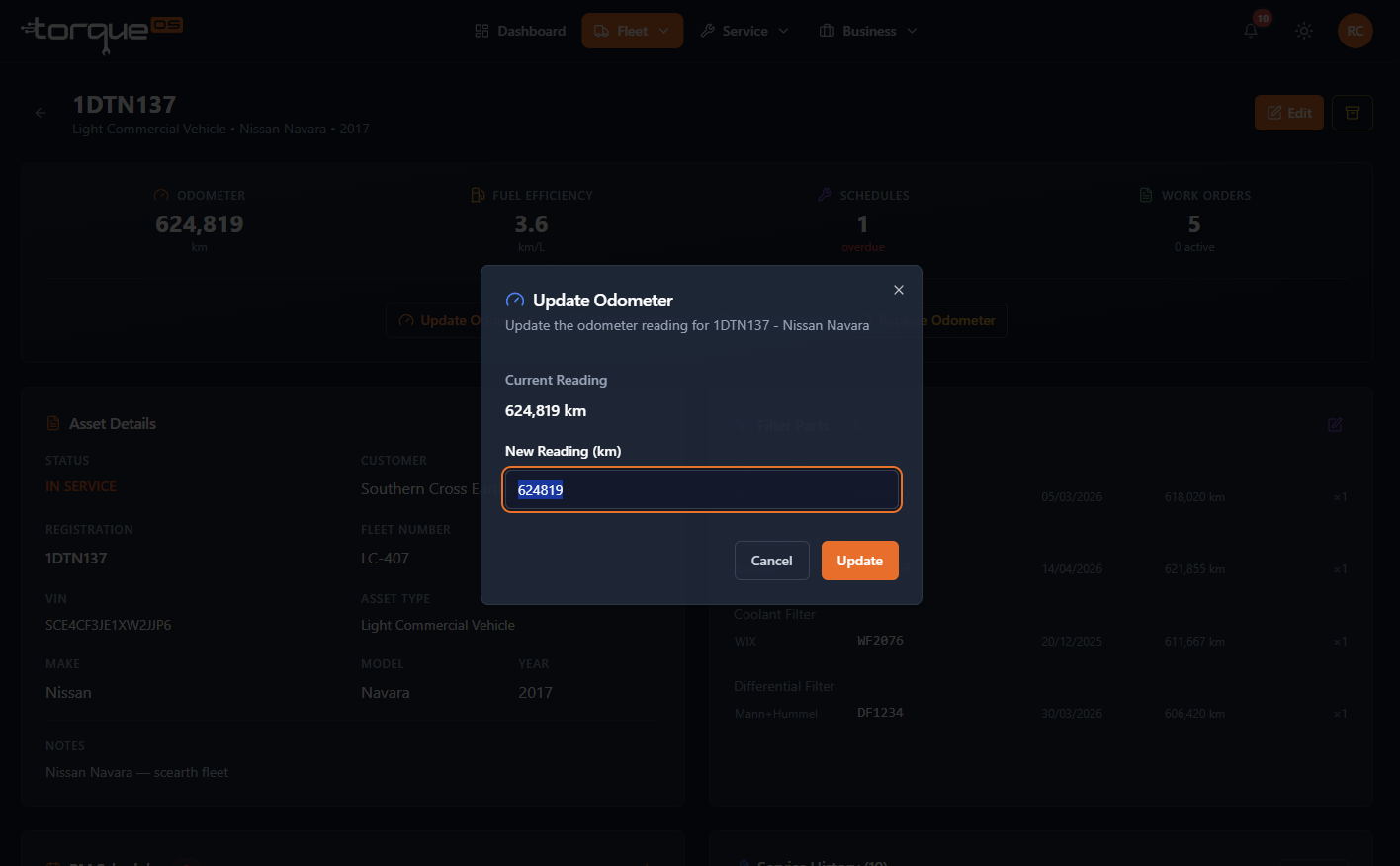
- Click Update odometer (or Update engine hours).
- Enter the new reading and save.
Readings are forward-only by default. If a meter has been replaced and reads lower, use Replace odometer instead — the historical max is kept for service calculations so a meter swap doesn't reset your service intervals.
Service intervals
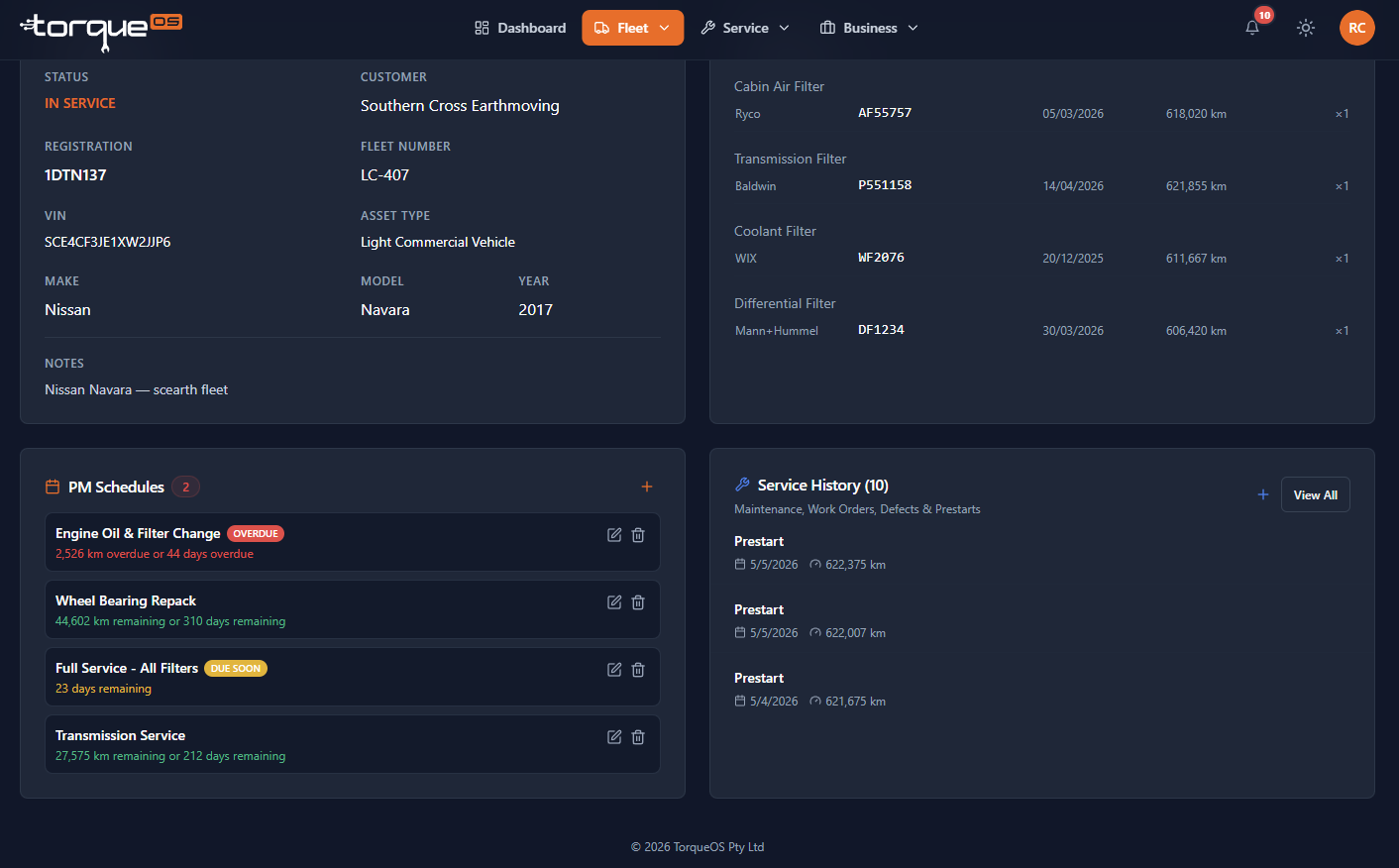
On the asset detail page, the Maintenance schedules panel lets you add services like "Engine oil & filter every 10,000 km or 6 months." Once configured, TorqueOS:
- Surfaces overdue and due-soon services on your dashboard
- Adds them to the notifications bell
- Optionally emails a reminder
Filters & serviceable parts
Each asset has a Filters tab where you record brand and part numbers for engine air, fuel, oil, cabin air, hydraulic, transmission, coolant, and differential filters. Worth filling in once — it saves the workshop (or your own mechanics) time when ordering replacements.
Still stuck? Email support@torqueos.net with your tenant name and a brief description and we'll get back to you the same business day.