
Scheduling jobs
Use the visual scheduler to plan the week and assign mechanics.
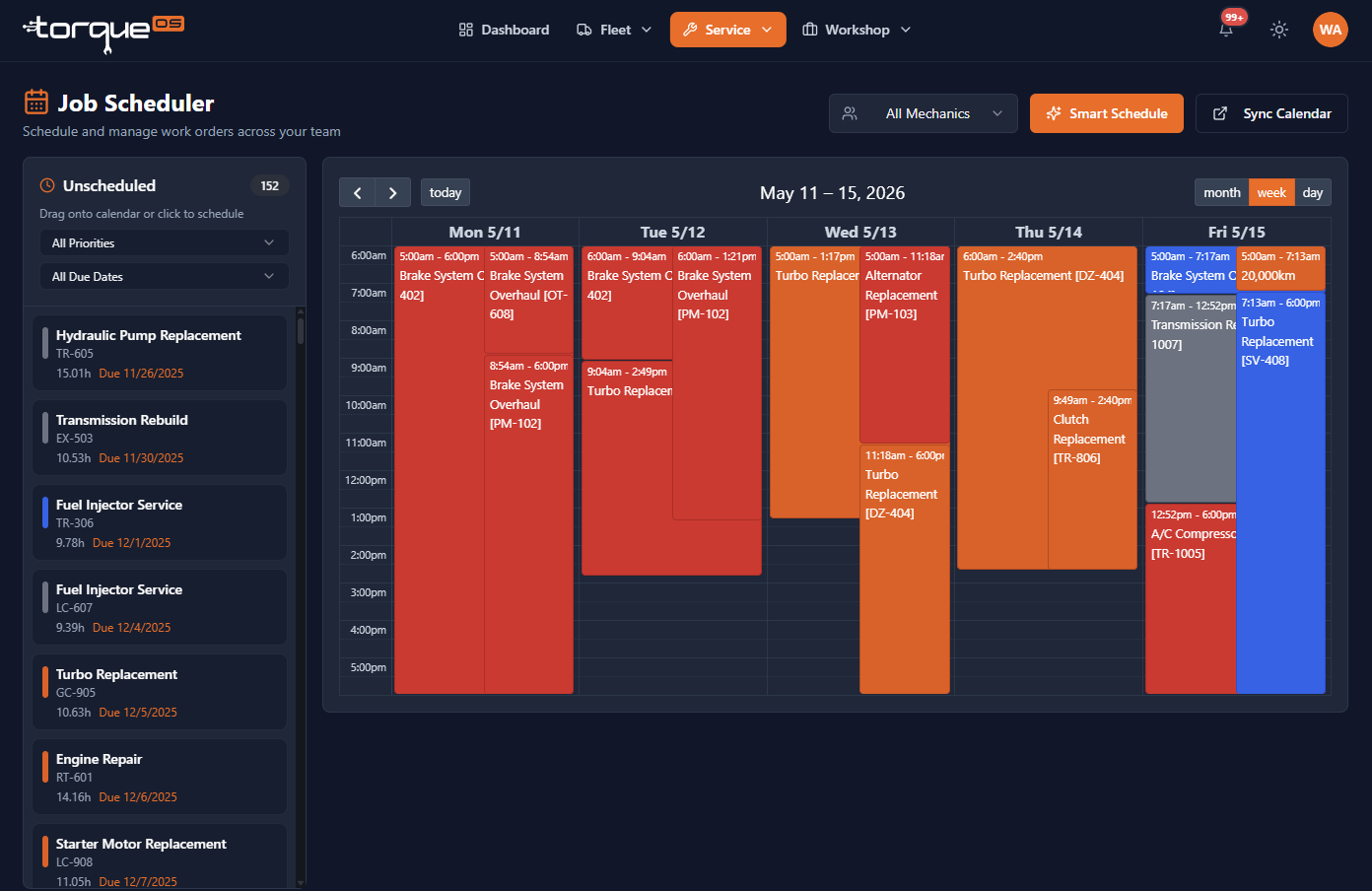
The Scheduler is a visual calendar of every work order with a planned start time. Drag a job onto a mechanic's lane to assign and reschedule it in one move.
Open the scheduler
From the Service dropdown, select Scheduler. By default you land on a week view with all jobs shown side by side.
Schedule a job
- Drag the unscheduled card onto the calendar.
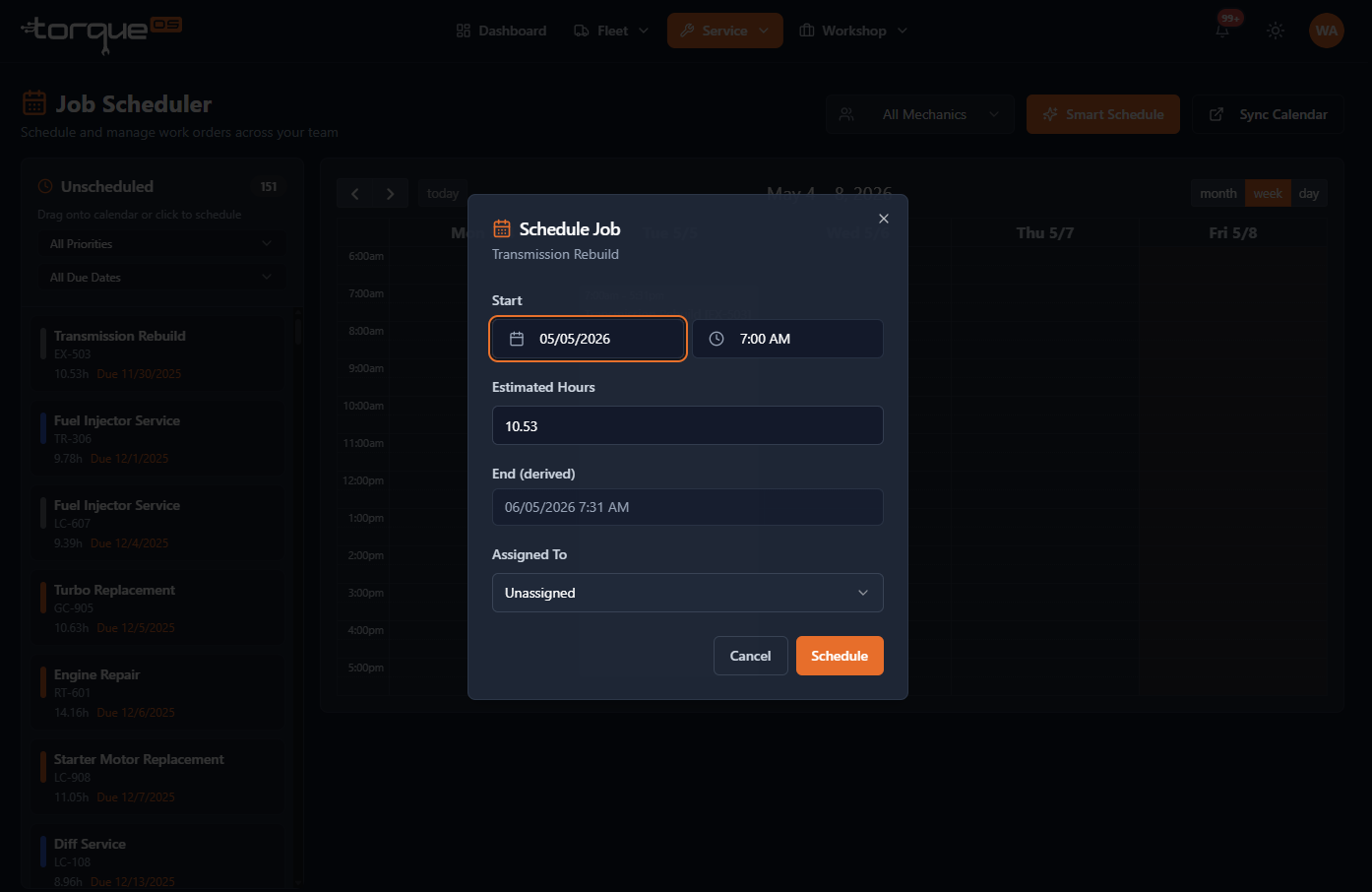
- Set the start and end times, mechanic, and any conflict warnings.
- Save — the work order gets a
scheduled_start/scheduled_endand shows up on the assignee's calendar.
Reschedule
Drag a scheduled card to a new slot or another mechanic. The customer gets an email notification on reschedule (configurable per workshop), so they know the new ETA.
Filtering
- Filter by mechanic to see only one person's week.
- Filter by priority to spot urgent jobs first.
- Filter by client to plan a long-running engagement.
External calendar sync
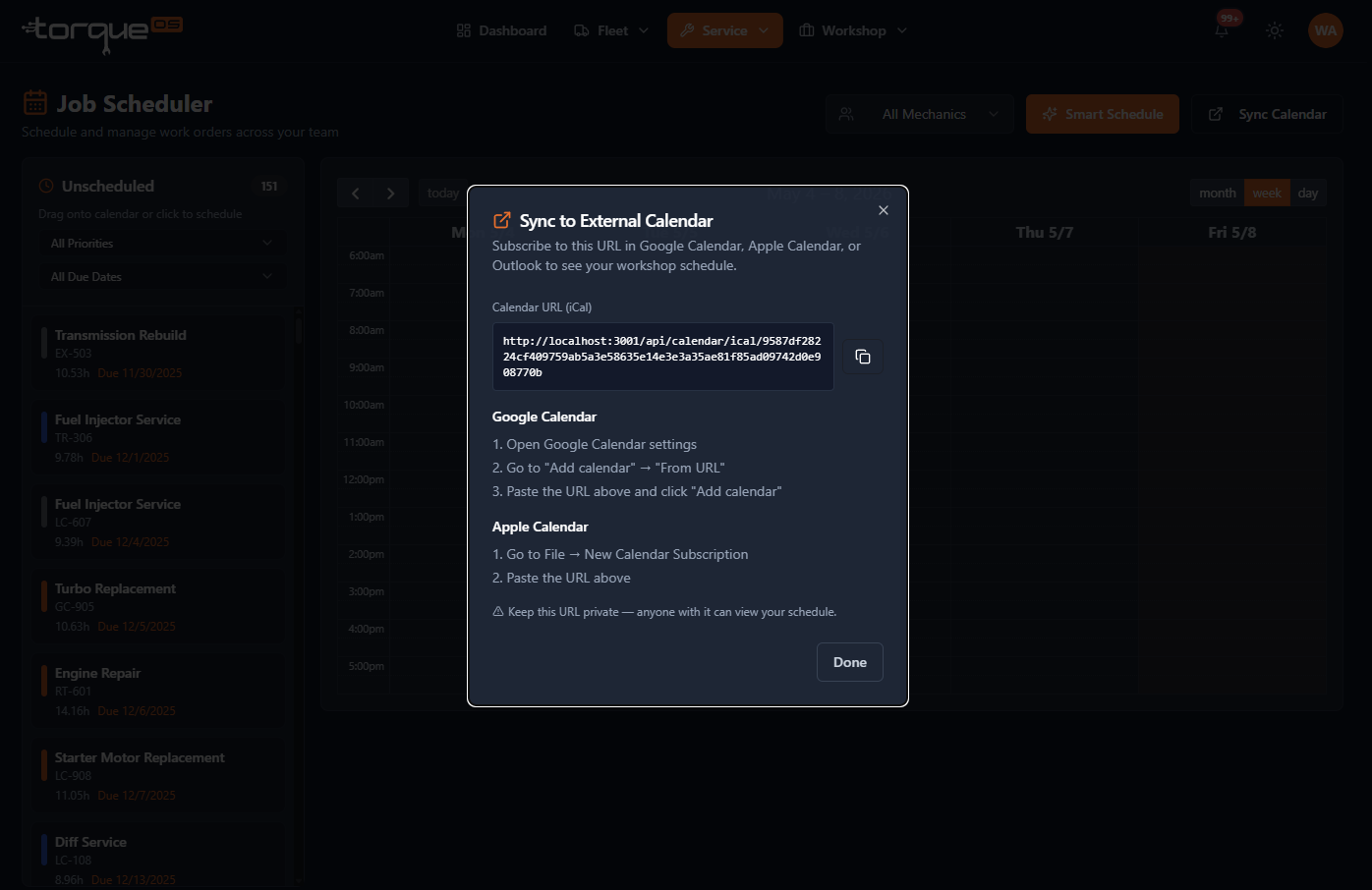
Each user has a private iCal feed under Profile › Integrations. Subscribe to it from Apple Calendar, Google Calendar, or Outlook to see your assigned jobs in your normal calendar app — read-only, updates automatically.
Related guides
Still stuck? Email support@torqueos.net with your tenant name and a brief description and we'll get back to you the same business day.