
Parts inventory
Stock levels, reordering thresholds, and using parts on a job.
The Parts catalog is your inventory of stocked items — filters, fluids, fasteners, consumables — plus the special Labour entry seeded during onboarding. Each part has a part number, description, supplier, buy price, sell price, current stock, and minimum stock.
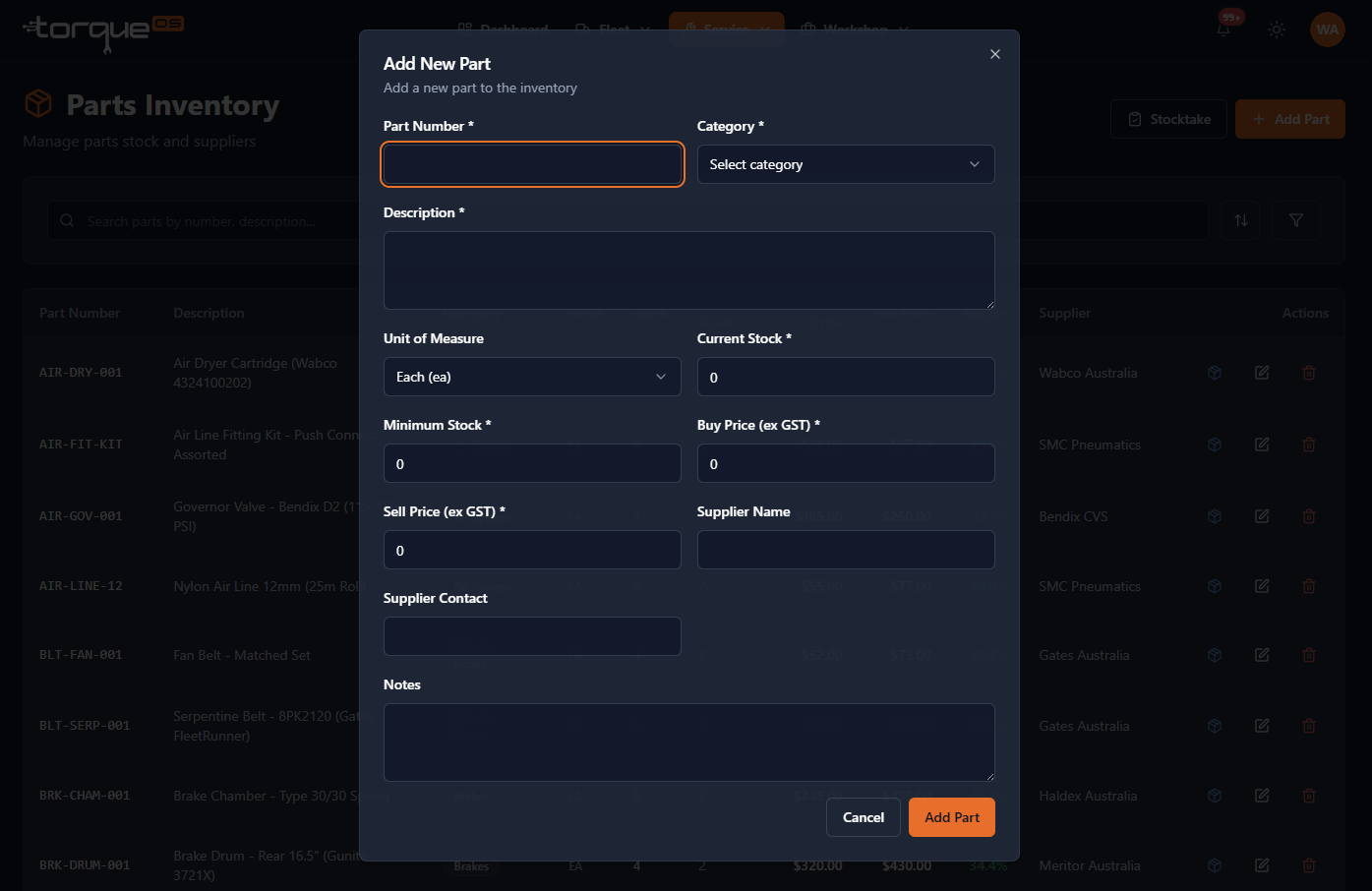
Add a part
- Open Parts from the side nav.
- Click Add part.
- Fill in the details. Required: part number, description.
- Set Minimum stock if you want this part to surface in low-stock alerts. Leave at 0 to disable alerts (e.g. for service items you don't physically stock).
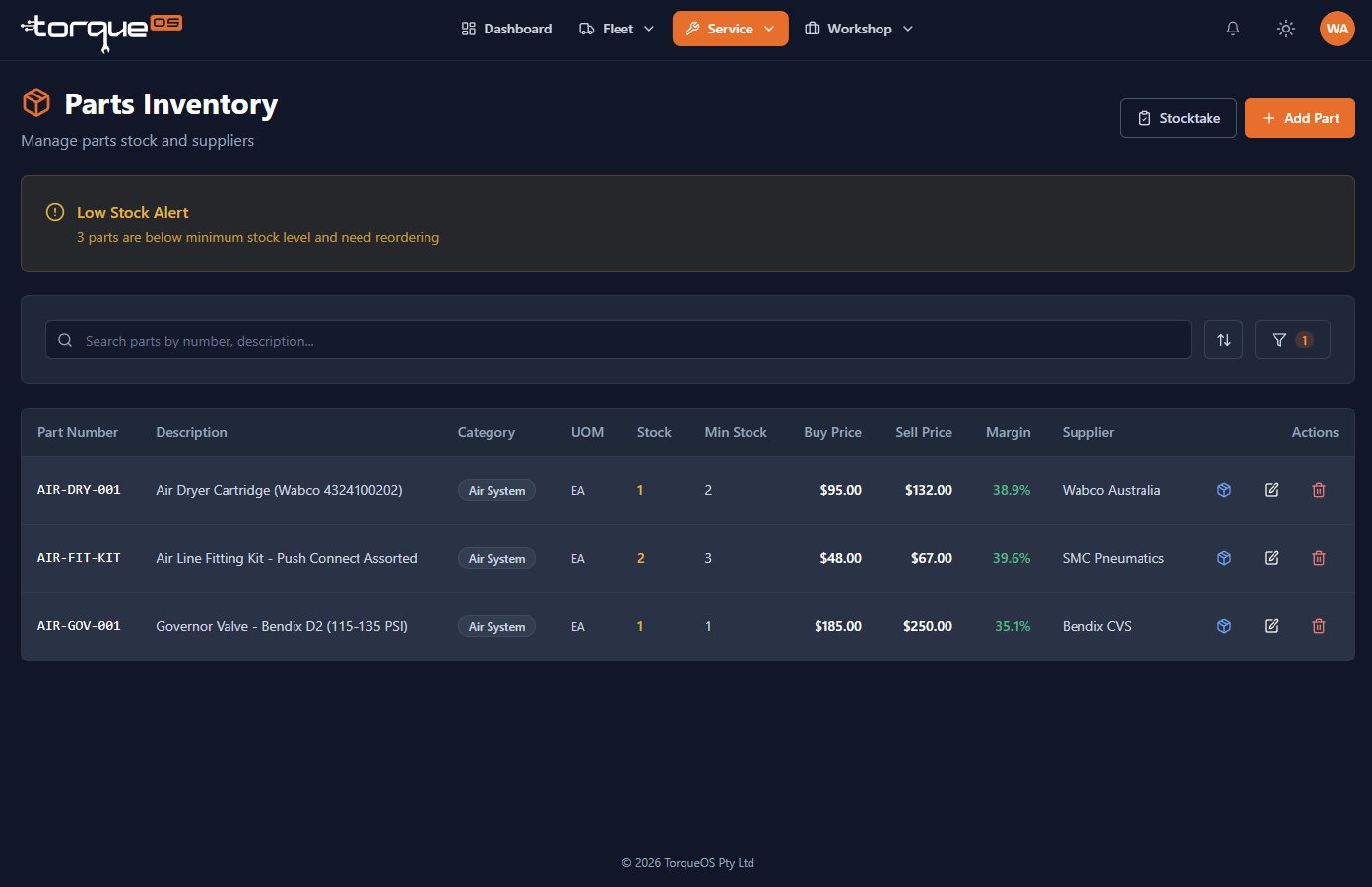
Low-stock alerts
Any part where current stock has fallen to or below its minimum is flagged in the notifications bell, the dashboard Low stock parts tile, and the Parts list when you turn on the Low stock filter. Parts with a minimum of 0 (like Labour) are intentionally excluded — they're not stock-tracked, just used for billing.
Adjusting stock manually
For receivals or stocktake corrections, open the part and use Adjust stock. Enter the new value and a reason — the system keeps an audit trail of every change.
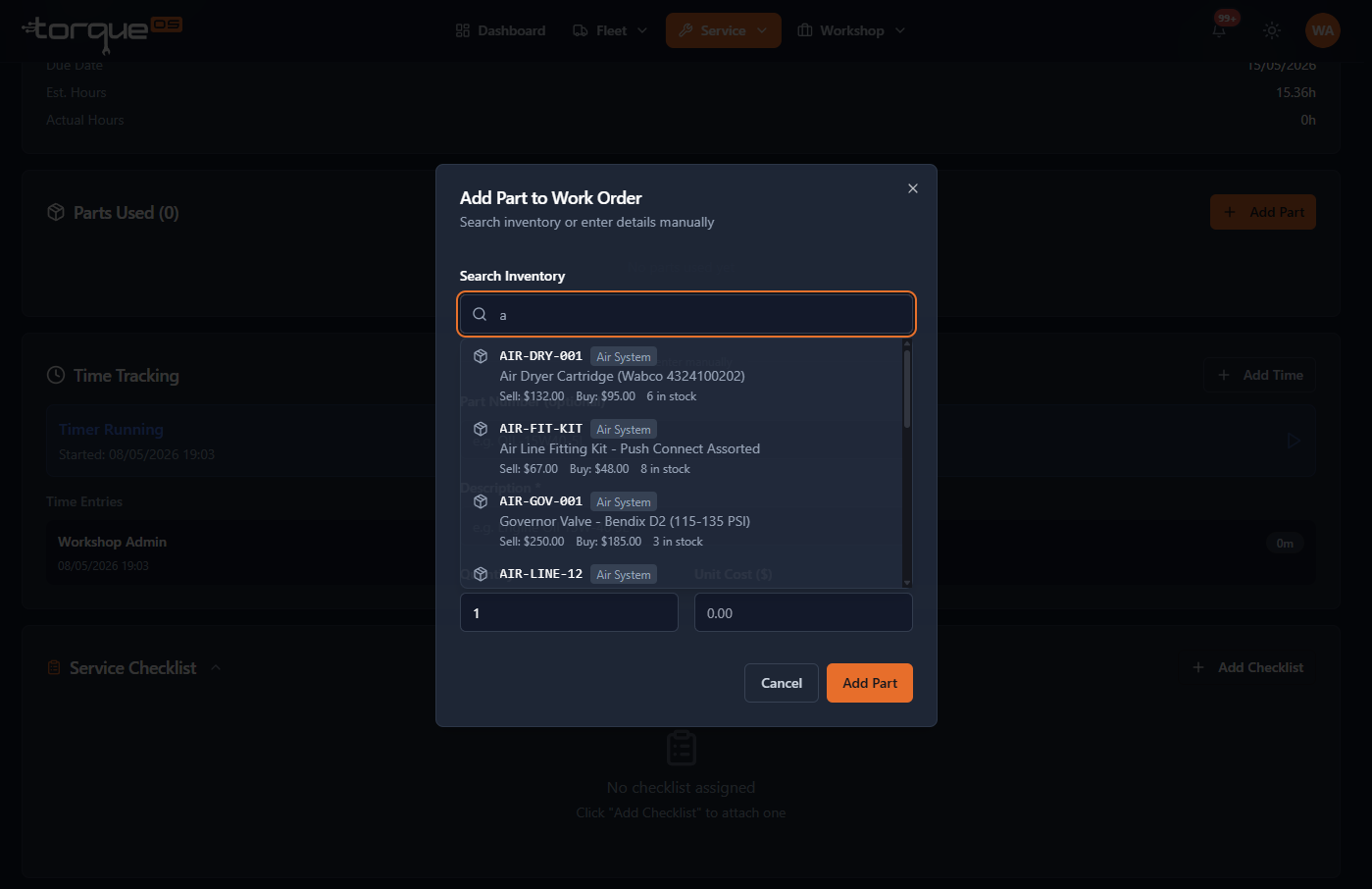
Using parts on a work order
Search by part number or description in the work order's parts panel, set quantity, and the system handles cost calculation and stock decrement. For one-off items not in the catalog, use Add manual part on the work order — a description and sell price are required, part number optional.
Stocktakes
TorqueOS supports rolling stocktakes. Open Stocktake from the Parts page, scan/select parts, count physical stock, and confirm — variances become stock adjustments with the stocktake reference attached.
Related guides
Still stuck? Email support@torqueos.net with your tenant name and a brief description and we'll get back to you the same business day.