
Logging in
How to sign in to TorqueOS, the difference between roles, and what to do if you can't get in.
TorqueOS uses a single sign-in page for everyone — workshop admins, mechanics, fleet admins, and fleet users. The role on your account determines what you see after you sign in; the login flow itself is the same.
Sign in
- Go to app.torqueos.net/login.
- Enter the email address you used at signup (or that an admin used to invite you).
- Enter your password and click Sign in.
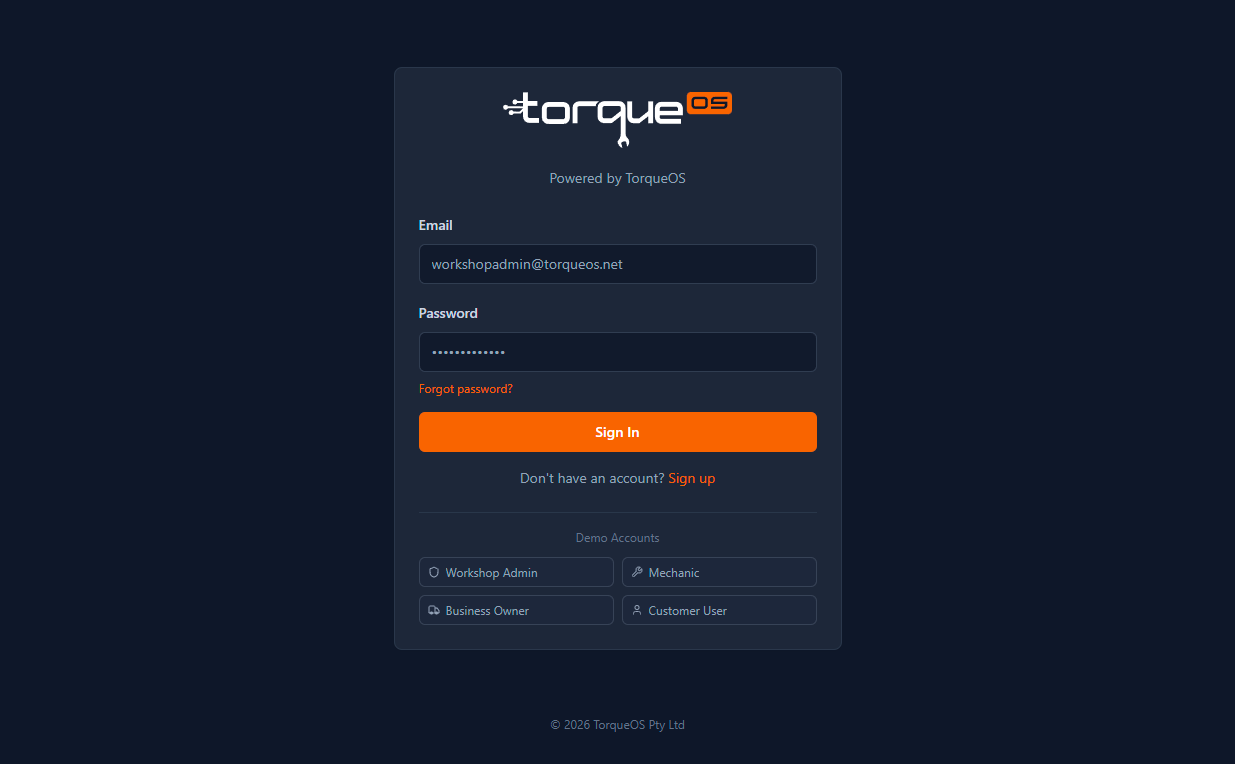
Once signed in, you'll land on the dashboard for your role. Workshop admins see the workshop overview; fleet admins see their own fleet; mechanics see only the work orders assigned to them.
I forgot my password
- On the login page, click Forgot password?
- Enter your email address and submit the form.
- Check your inbox (and spam folder) for an email from
noreply@torqueos.net. - Click the reset link in the email — it's good for 1 hour — and choose a new password.
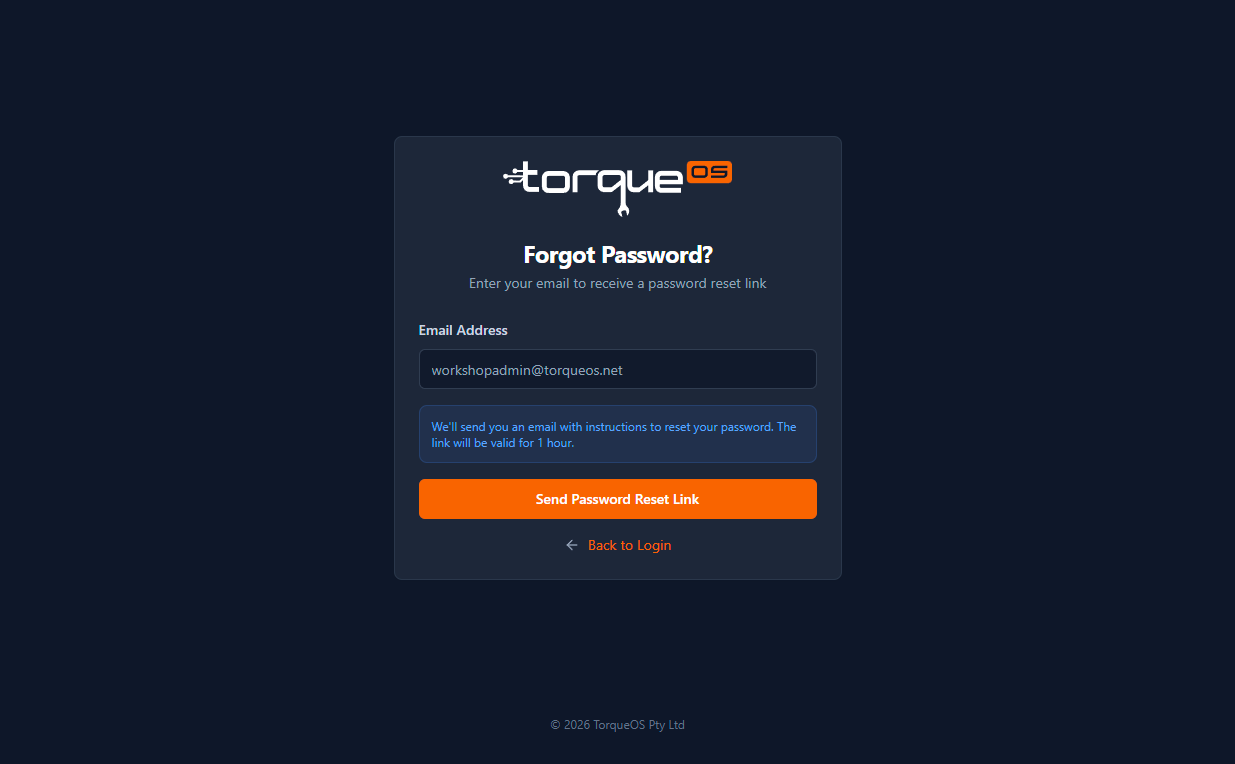
If the email never arrives, check the spelling of your address and look in spam. If it's still missing, email support@torqueos.net.
What if my account is locked or invitation expired?
Invitations expire after 7 days. If your invitation link no longer works, ask the person who invited you to resend it — they can do that from the same screen they invited you on. If you've been locked out for security reasons, contact support.
Roles in TorqueOS — quick reference
- Workshop Admin — full access to your workshop, customers, and team.
- Mechanic — sees only work orders assigned to them, plus the assets and prestarts on those jobs.
- Fleet Admin — full access to your own small business' assets, work orders, defects, and team.
- Fleet User — operational access: submit defects and prestarts, view assigned work orders.
Still stuck? Email support@torqueos.net with your tenant name and a brief description and we'll get back to you the same business day.