
Onboarding your workshop
Sign up, set your business details, and prepare to bring your first client on.
Workshop onboarding takes about 10 minutes. By the end you'll have a workshop tenant with your business details, a default Labour part for invoicing, and the standard set of service-checklist templates pre-loaded so you can build quotes and work orders immediately.
1. Sign up
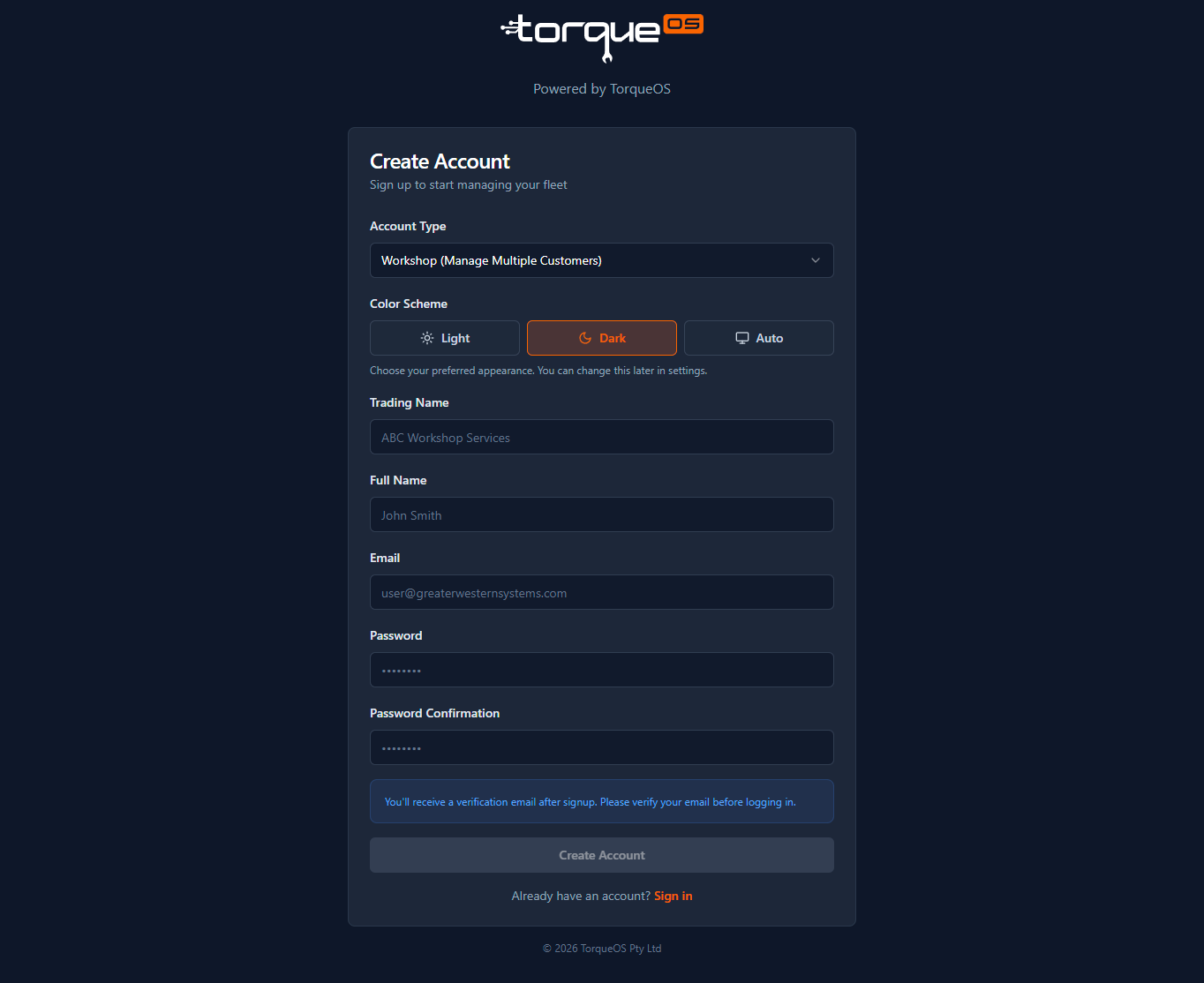
- Visit app.torqueos.net/signup.
- Choose Workshop as the account type.
- Enter your name, email, and a strong password.
- Confirm the email address by clicking the link in the verification email we send.
2. Tell us about your business
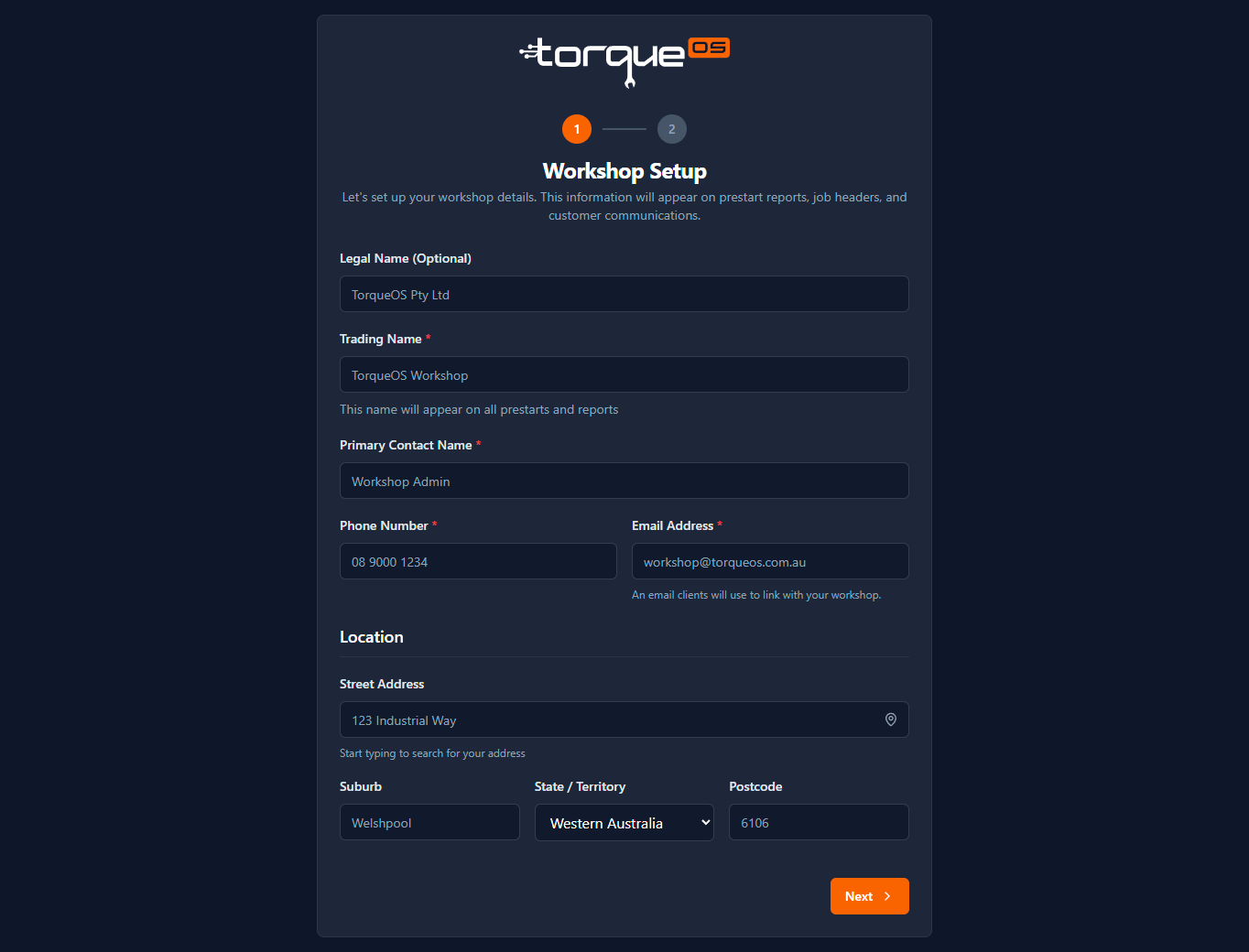
Once verified, the onboarding wizard walks through your trading name, ABN, primary contact, and street address. These details appear on every PDF (work orders, quotes, invoices) you generate, so take a moment to get them right.
3. What gets seeded automatically
When you finish onboarding, TorqueOS creates the following on your behalf:
- A Labour part with a sell price of $0 and minimum stock of 0. This is what you'll allocate to time entries on a work order. You can edit the rate later, or override it per-job. Because the minimum stock is 0, it never triggers a low-stock alert.
- A library of service checklist templates covering on-highway, off-road, and earthmoving asset types. Customise or duplicate any of them — see prestart & service templates.
4. Invite your team
Don't do everything from one login. Add a profile for each mechanic and admin so time entries, notes, and audit logs attribute correctly. Read Inviting your team.
5. Add your first client
With the workshop ready, the next step is to add a client (a fleet you service) so you can start logging work against their assets. See Adding a client.
Still stuck? Email support@torqueos.net with your tenant name and a brief description and we'll get back to you the same business day.