
Updating your profile
Change your name, email, password, and notification preferences.
Your profile holds your display name, contact email, password, and personal notification settings. Anyone can update their own profile regardless of role.
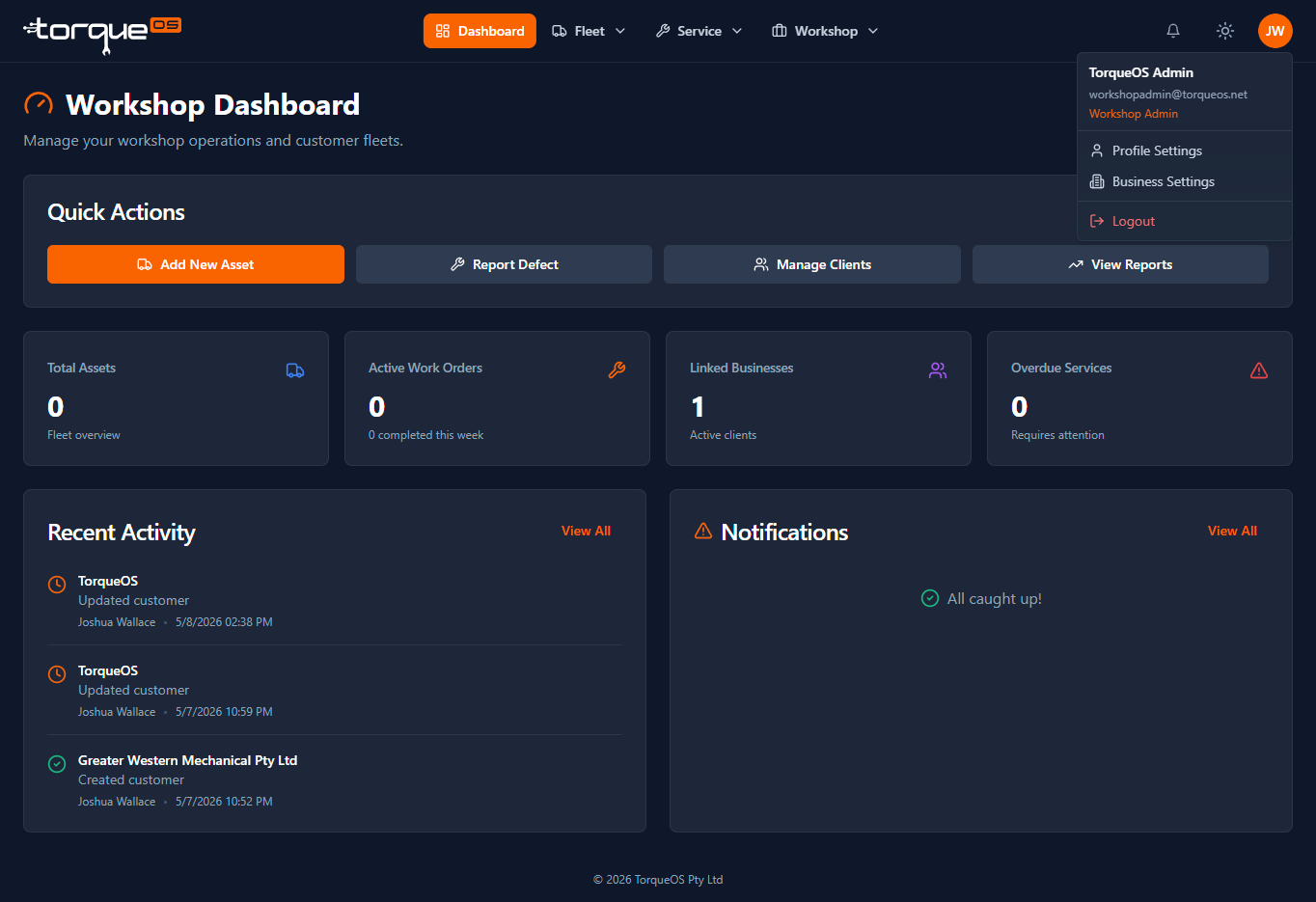
Get to your profile page
- Click your avatar (top-right of the app).
- Choose Profile settings.
Change your email address
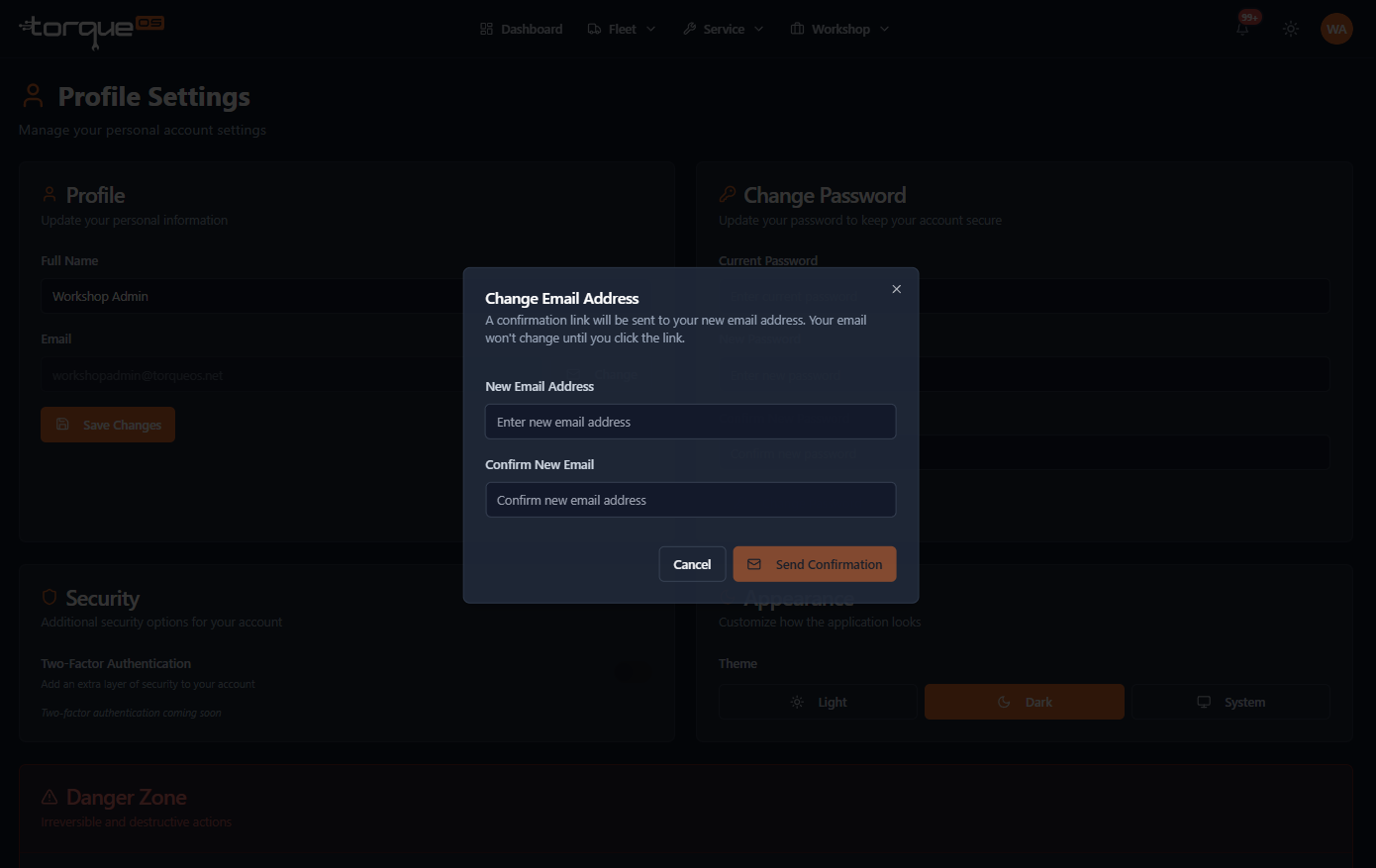
Email changes require a confirmation step so a stolen session can't hijack your account.
- From the Profile Settings page in the Profile section, click Change and enter your new email address and confirm it.
- Click Send Confirmation.
- Open the inbox of the new address and click the confirmation link.
- The old address gets a heads-up email so you know if someone unauthorised tried to swap your login.
Change your password
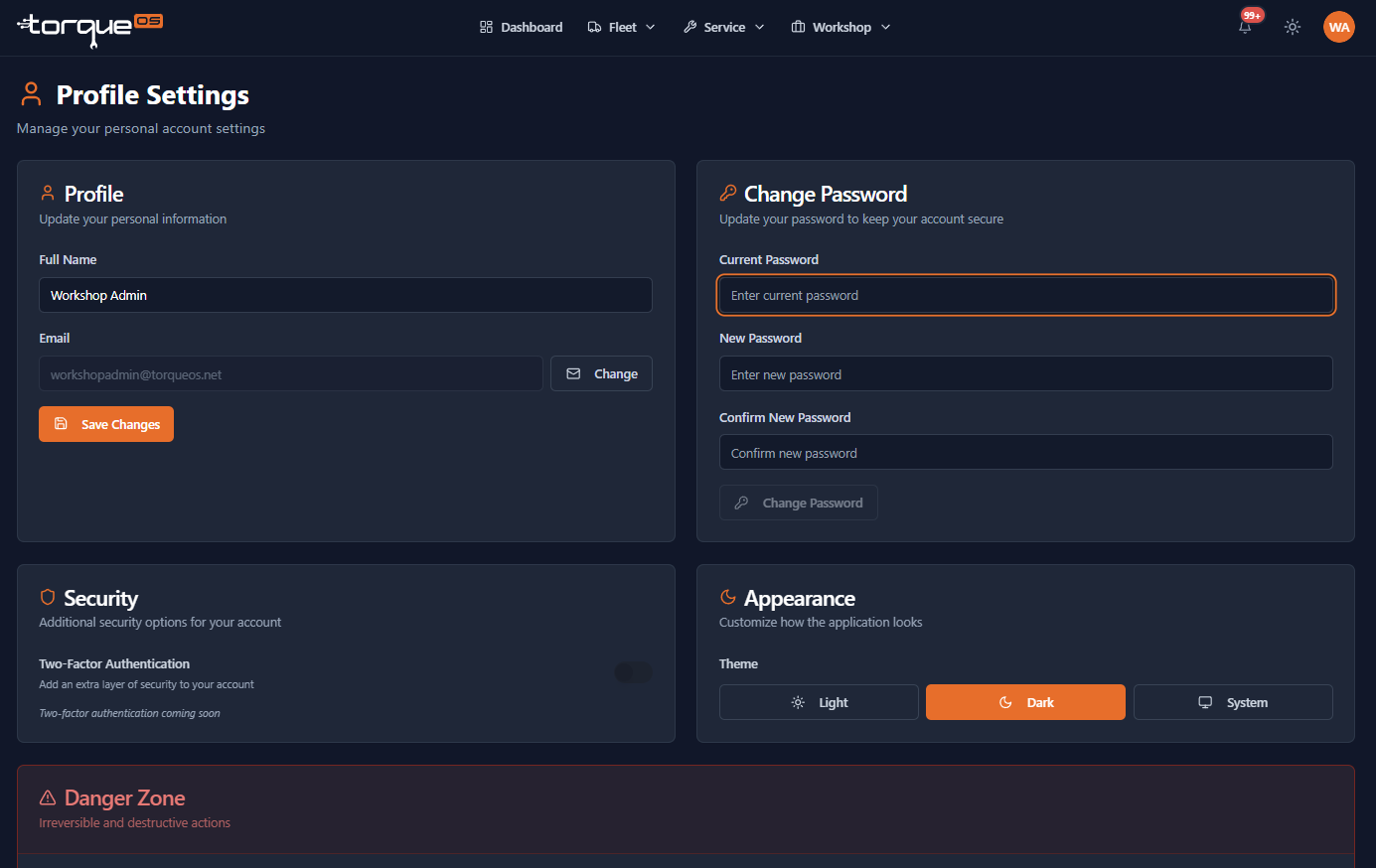
In the Change Password section, enter your current password, then your new one twice, and save. You'll get an email confirmation that the password was changed — if you ever see one of these and you didn't do it, contact support immediately.
Notification preferences
Some emails are required for security (password reset, email change confirmations) and can't be turned off. Operational notifications — work order updates, defect alerts, due maintenance — can be toggled per category.
Related guides
Still stuck? Email support@torqueos.net with your tenant name and a brief description and we'll get back to you the same business day.